addtowallet.co
Create PassFeaturesPricingAPIBlog
Sign InGet Started Free
All guides▾
  • Guide10 reasons why incorporating Mobile Wallet Passes into your mobile strategy is essential
  • Guide5 Reasons why your store needs a wallet pass
  • GuideAdvantages of using Google and Apple wallet pass in businesses
  • GuideBest practices to design an amazing wallet pass
  • GuideBoost Engagement with Interactive Wallet Passes in Magazines
  • GuideConvert Pdf To Pass Using AddToWallet
  • GuideCreate Apple wallet pass for free
  • GuideCreate Apple Wallet passes for Your Business
  • GuideCreate Google wallet pass for free
  • GuideCreating Apple and Google Wallet Passes
  • GuideCreate Wallet Passes with the AddToWallet Zapier Integration
  • GuideDifferences between Apple and Google wallet
  • GuideEnhance audience interaction with wallet passes in Newspapers
  • GuideHidden Form Fields: Dynamic Expiry for Wallet Passes
  • GuideHow Google and Apple Wallet Pass Works
  • How-toHow to Add Amelia Booking Passes to Apple Wallet & Google Wallet
  • How-toHow to Add an Add to Wallet Button to Your Website
  • How-toHow to Add an Apple Wallet Button Easily
  • How-toHow to Add Bookly Booking Passes to Apple Wallet & Google Wallet
  • How-toHow to Add Location to Wallet Passes
  • How-toHow to Add Team Members to Your Account
  • How-toHow to Add Simply Schedule Appointments Bookings to Apple Wallet & Google Wallet
  • How-toHow to Add The Events Calendar Tickets to Apple Wallet & Google Wallet
  • How-toHow to Add LatePoint Appointments to Apple Wallet & Google Wallet
  • How-toHow to Add Sugar Calendar Tickets to Apple Wallet & Google Wallet
  • How-toHow to configure notifications for Apple & Google wallet passes
  • How-toHow to create a business pass for Apple and Google wallet
  • How-toHow to Create a wallet pass?
  • How-toHow to create a wallet pass using Zapier Integration?
  • How-toHow to create digital Concert Tickets with AddToWallet.co
  • How-toHow to create dynamic passes and manage users in AddToWallet
  • How-toHow To Create Gift Cards in Bulk
  • How-toHow to Create Hair Salon Gift Cards in Minutes
  • How-toCreate Loyalty Wallet Pass Using AddToWallet
  • How-toHow to Create Mobile Wallet Passes Using Google Sheets
  • How-toHow to Create & Scan Dynamic Wallet Passes Using AddToWallet
  • How-toHow To Distribute Google or Apple Wallet Pass
  • How-toHow to duplicate a wallet pass?
  • How-toHow to embed Google Wallet or Apple Wallet button on Shopify
  • How-toHow to embed Google wallet or Apple wallet button on Squarespace
  • How-toHow to embed Google Wallet or Apple Wallet button on Weebly
  • How-toHow to embed Google Wallet or Apple wallet button on Wix
  • How-toHow to embed Google Wallet or Apple Wallet button on WordPress
  • How-toHow to Generate JSON for Apple & Google Wallet Passes
  • How-toHow to generate leads with a Google or Apple Wallet coupon
  • How-toHow to Use AddToWallet Node on N8N
  • How-toHow to integrate make.com with AddToWallet.co?
  • How-toHow to Secure Wallet Passes with Access Code Protection
  • How-toHow to Send Notifications Using Wallet Pass
  • How-toHow to Set Up Custom Domains with AddToWallet
  • How-toHow to Share Wallet Passes Using Flyers
  • How-toHow to test Apple Wallet beacons
  • How-toAddToWallet Order Pass App on Shopify
  • How-toHow to create dynamic wallet pass
  • How-toHow to Use Webhooks with AddToWallet
  • GuideOur Audience Asked for Wallet Tickets AddToWallet.co Delivered
  • GuideCreate Wallet Passes from Form Responses
  • GuideWallet Pass Generator for Google Sheets
  • GuideWallet Passes for Wedding Invitations

How-to

Create Loyalty Wallet Pass Using AddToWallet

By AddToWallet Team·Published April 26, 2025·Updated November 25, 2026·4 min read

A loyalty pass replaces a paper punch card. This walkthrough is a five-stamp card for one synthetic member, Alex Example, from the first stamp through a reward and a reset.

The program page is digital loyalty cards. Nearby reminders, if you add them, follow notification settings. Google generic nearby alerts use merchantLocations only.

Issue a five-stamp card

  1. Open loyalty templates and choose a stamp card.
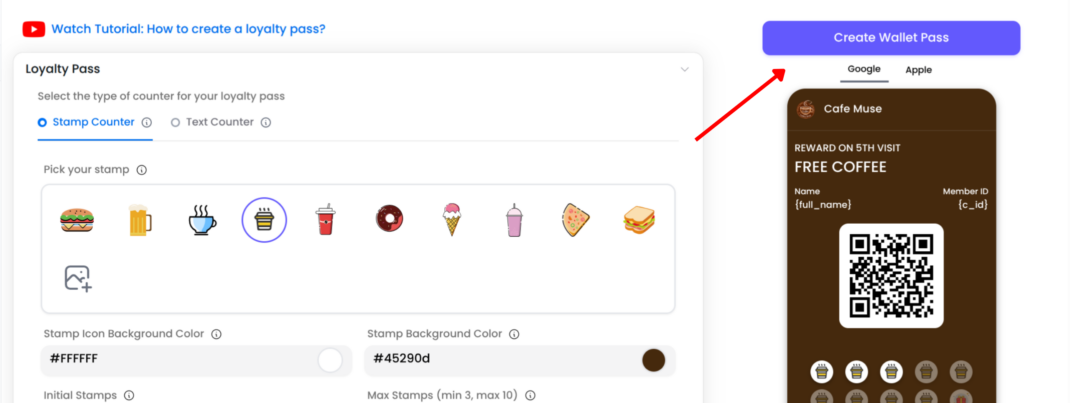
  2. Set the maximum stamps to 5. Set the starting stamps to 0 unless you are granting a bonus.
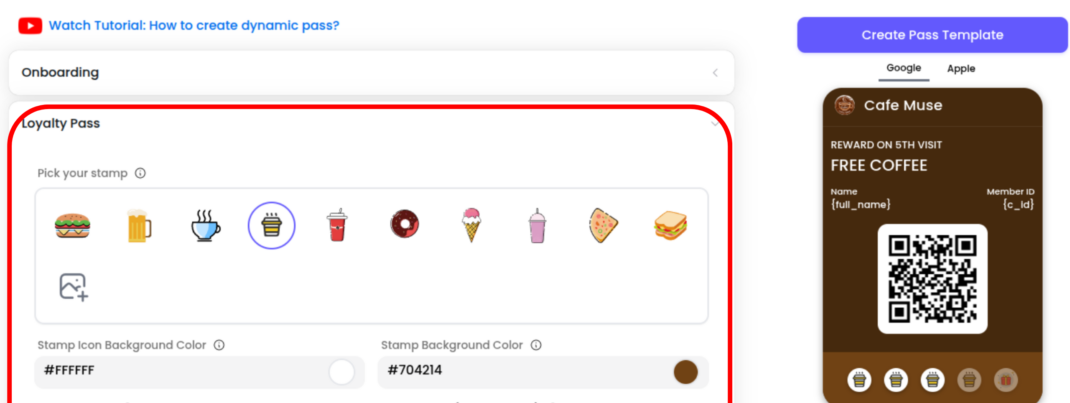
  3. Set the stamp icon and the strip colors. The stamp images should be readable at the size of a wallet pass.
  4. Create the template. Add Alex Example in the linked group, with a member id you can read on the pass, such as LOY-1001.
  5. Copy Alex Example's pass link and save it on the phone you will scan. Staff do not punch a card that was only previewed on a laptop.
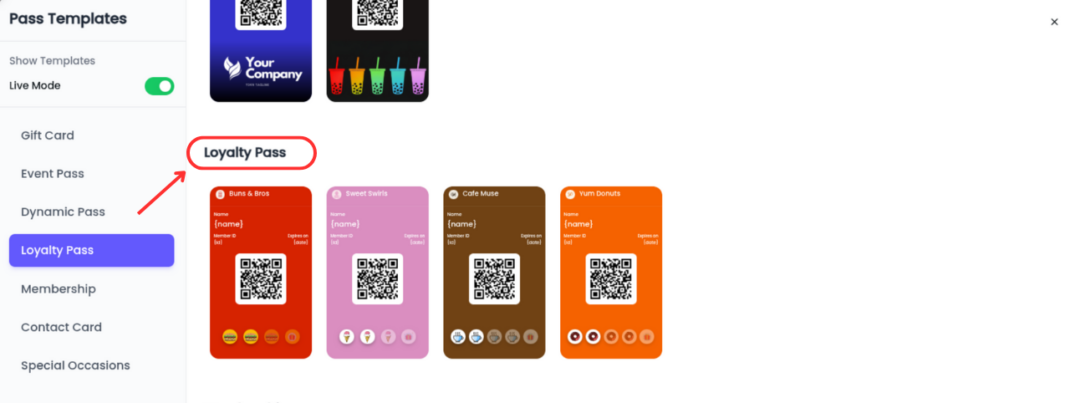
Loyalty pass template selected in AddToWallet
Stamp count, icon, and colors on the loyalty pass
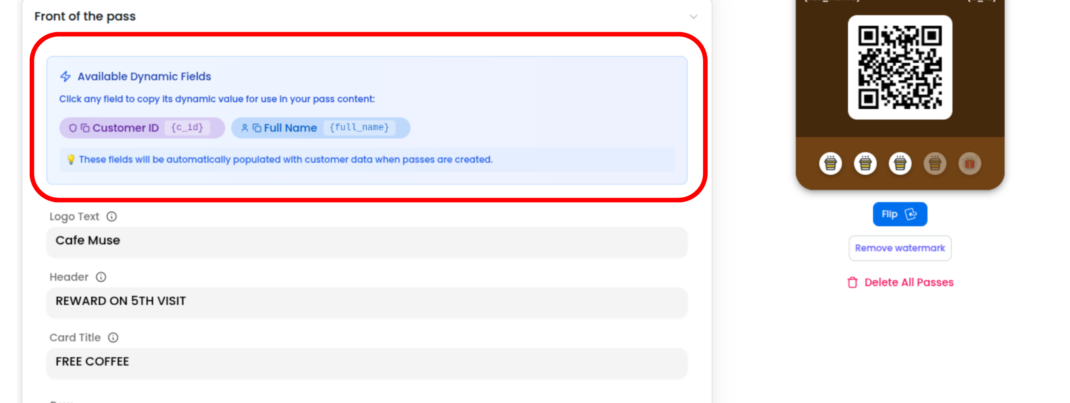
Pass fields under the loyalty stamp settings
Creating the loyalty template and its member group

Stamp, finish, redeem, reset

There is no point-of-sale connector in this flow. Staff use AddToWallet Scanner on a phone signed into the same account, or your own system calls the loyalty check-in API. A register that does not call that API does not add a stamp.
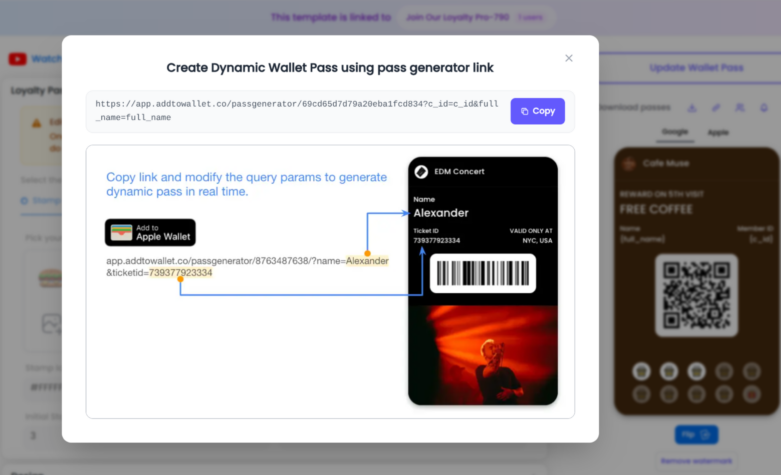
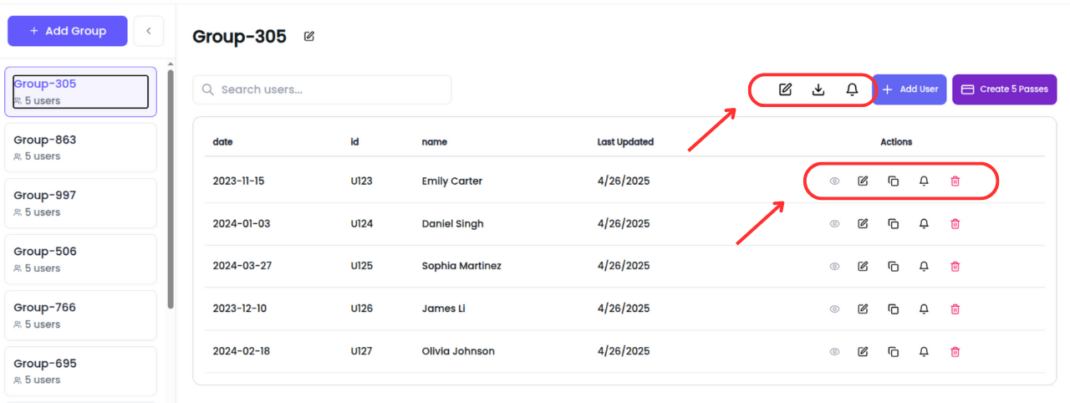
Copying the loyalty pass link for Alex Example
Member row for the loyalty pass in the group
  1. Scan Alex Example once. The count should move from 0 to 1. Each successful check-in adds one stamp. A second scan adds another, so scan once per visit.
  2. Repeat until the pass shows 5 of 5. That is the completed card, not an automatic coupon. Your reward rule is whatever you told staff to give at 5.
  3. Hand over the reward, then press Reset Visits on the check-in screen (or send resetVisits on the check-in API). The card returns to its starting count so the next visit is stamp 1 again.
  4. If a stamp was a mistake, correct the count on that check-in before the guest leaves. Do not issue a second pass to undo one scan.
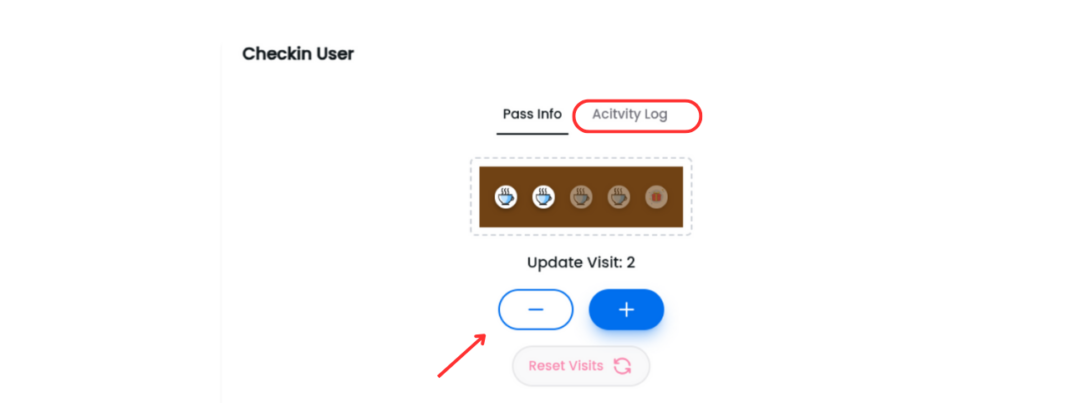
Scanning a loyalty pass to add a stamp

Staff card

  • Scanner phone is signed into the account that owns the program.
  • One scan per visit. Read the new count before the next guest.
  • At 5 stamps, give the reward you advertised, then Reset Visits.
  • Lost phone: the guest opens the same pass link and adds it again. Do not create a second member row for the same person.

What each visit should show

Use one member, Alex Example, and one scanner phone. Read the count after every scan before the next guest steps up. The numbers below are the stamp total after that visit, starting from 0.

Visit Stamps after the scan What staff do
1 1 of 5 One scan. Stop.
2 2 of 5 One scan. Stop.
3 3 of 5 One scan. Stop.
4 4 of 5 One scan. Tell them one visit remains.
5 5 of 5 Give the reward you advertised, then Reset Visits.

Reset Visits returns the card to the starting count. It does not create a new member and it does not create a coupon by itself. The reward is the one you told staff to hand over at 5. If the fifth scan was wrong, correct that check-in. Do not add a second row for Alex Example to undo it.

A register that never calls the check-in API does not add a stamp. Staff use AddToWallet Scanner on a phone signed into the account that owns the program, or your system sends the check-in. Nearby alerts are separate. On a Google generic pass they use merchant locations only, at most 10. Google sets the radius, the dwell time, and the lock-screen text. The program page is the loyalty guide linked above. This page is the five-visit rehearsal.

Create Wallet Pass Now

All guides

  • Guide10 reasons why incorporating Mobile Wallet Passes into your mobile strategy is essential
  • Guide5 Reasons why your store needs a wallet pass
  • GuideAdvantages of using Google and Apple wallet pass in businesses
  • GuideBest practices to design an amazing wallet pass
  • GuideBoost Engagement with Interactive Wallet Passes in Magazines
  • GuideConvert Pdf To Pass Using AddToWallet
  • GuideCreate Apple wallet pass for free
  • GuideCreate Apple Wallet passes for Your Business
  • GuideCreate Google wallet pass for free
  • GuideCreating Apple and Google Wallet Passes
  • GuideCreate Wallet Passes with the AddToWallet Zapier Integration
  • GuideDifferences between Apple and Google wallet
  • GuideEnhance audience interaction with wallet passes in Newspapers
  • GuideHidden Form Fields: Dynamic Expiry for Wallet Passes
  • GuideHow Google and Apple Wallet Pass Works
  • How-toHow to Add Amelia Booking Passes to Apple Wallet & Google Wallet
  • How-toHow to Add an Add to Wallet Button to Your Website
  • How-toHow to Add an Apple Wallet Button Easily
  • How-toHow to Add Bookly Booking Passes to Apple Wallet & Google Wallet
  • How-toHow to Add Location to Wallet Passes
  • How-toHow to Add Team Members to Your Account
  • How-toHow to Add Simply Schedule Appointments Bookings to Apple Wallet & Google Wallet
  • How-toHow to Add The Events Calendar Tickets to Apple Wallet & Google Wallet
  • How-toHow to Add LatePoint Appointments to Apple Wallet & Google Wallet
  • How-toHow to Add Sugar Calendar Tickets to Apple Wallet & Google Wallet
  • How-toHow to configure notifications for Apple & Google wallet passes
  • How-toHow to create a business pass for Apple and Google wallet
  • How-toHow to Create a wallet pass?
  • How-toHow to create a wallet pass using Zapier Integration?
  • How-toHow to create digital Concert Tickets with AddToWallet.co
  • How-toHow to create dynamic passes and manage users in AddToWallet
  • How-toHow To Create Gift Cards in Bulk
  • How-toHow to Create Hair Salon Gift Cards in Minutes
  • How-toCreate Loyalty Wallet Pass Using AddToWallet
  • How-toHow to Create Mobile Wallet Passes Using Google Sheets
  • How-toHow to Create & Scan Dynamic Wallet Passes Using AddToWallet
  • How-toHow To Distribute Google or Apple Wallet Pass
  • How-toHow to duplicate a wallet pass?
  • How-toHow to embed Google Wallet or Apple Wallet button on Shopify
  • How-toHow to embed Google wallet or Apple wallet button on Squarespace
  • How-toHow to embed Google Wallet or Apple Wallet button on Weebly
  • How-toHow to embed Google Wallet or Apple wallet button on Wix
  • How-toHow to embed Google Wallet or Apple Wallet button on WordPress
  • How-toHow to Generate JSON for Apple & Google Wallet Passes
  • How-toHow to generate leads with a Google or Apple Wallet coupon
  • How-toHow to Use AddToWallet Node on N8N
  • How-toHow to integrate make.com with AddToWallet.co?
  • How-toHow to Secure Wallet Passes with Access Code Protection
  • How-toHow to Send Notifications Using Wallet Pass
  • How-toHow to Set Up Custom Domains with AddToWallet
  • How-toHow to Share Wallet Passes Using Flyers
  • How-toHow to test Apple Wallet beacons
  • How-toAddToWallet Order Pass App on Shopify
  • How-toHow to create dynamic wallet pass
  • How-toHow to Use Webhooks with AddToWallet
  • GuideOur Audience Asked for Wallet Tickets AddToWallet.co Delivered
  • GuideCreate Wallet Passes from Form Responses
  • GuideWallet Pass Generator for Google Sheets
  • GuideWallet Passes for Wedding Invitations
addtowallet.co

AddToWallet is a Mobile Wallet Pass creator to design custom Apple & Google Wallet passes for coupons, deals, gift cards, and loyalty cards.

Use Cases

  • Insurance
  • Fund raising
  • Fan-clubs
  • Restaurant
  • Higher Education

Solutions

  • Loyalty Pass
  • Coupons
  • Gift Cards
  • Event Tickets
  • Google Wallet
  • WalletPassBuilder

Company

  • FAQs
  • Blog
  • Product Updates
  • Privacy policy
  • Terms & conditions
  • Code of conduct
  • ESG statement
  • Trust Center
© 2026 Hazelnut Ventures LLC