







How-to
How to Add an Add to Wallet Button to Your Website
By AddToWallet TeamPublished Updated 2 min read
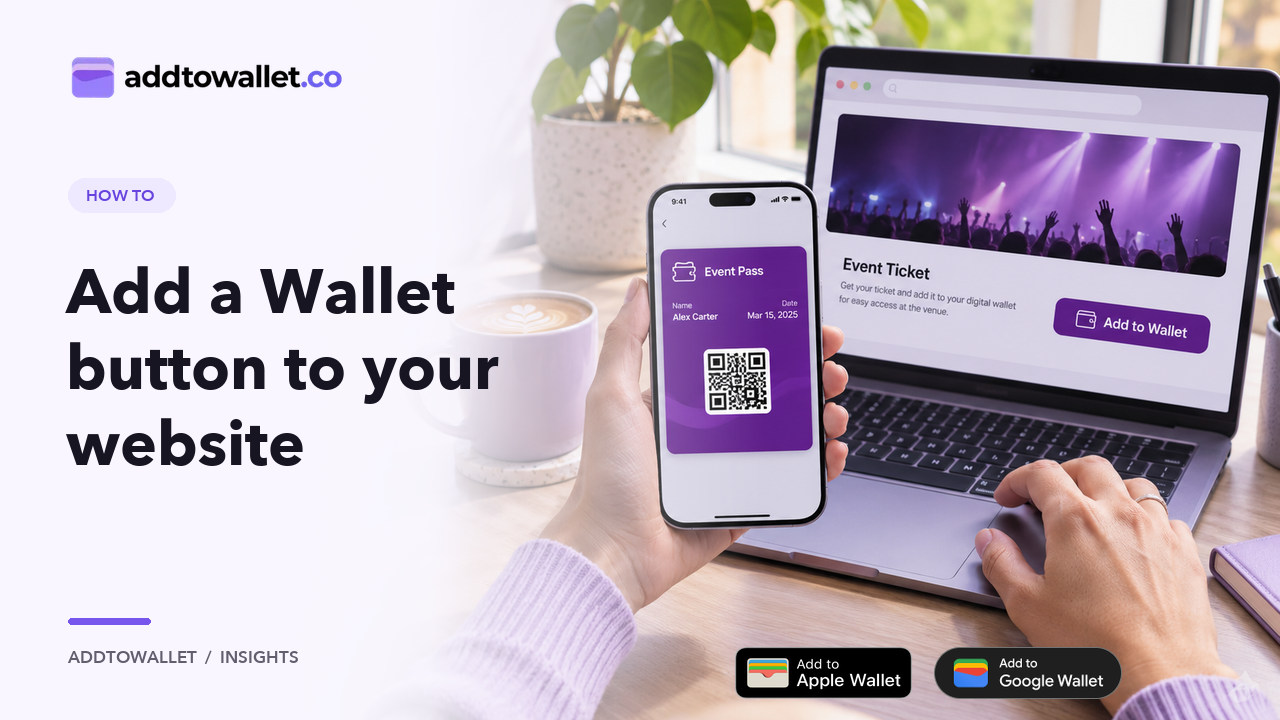
In this guide, you’ll learn how to quickly add an Add to Wallet button to your website using a simple JavaScript snippet.
This script automatically detects the user’s device using the browser’s user agent and displays:
Apple Wallet button for Safari users (iPhone/iPad)
Google Wallet button for Chrome and other browsers (Android/Desktop)
So your users will always see the correct wallet option without any extra setup.
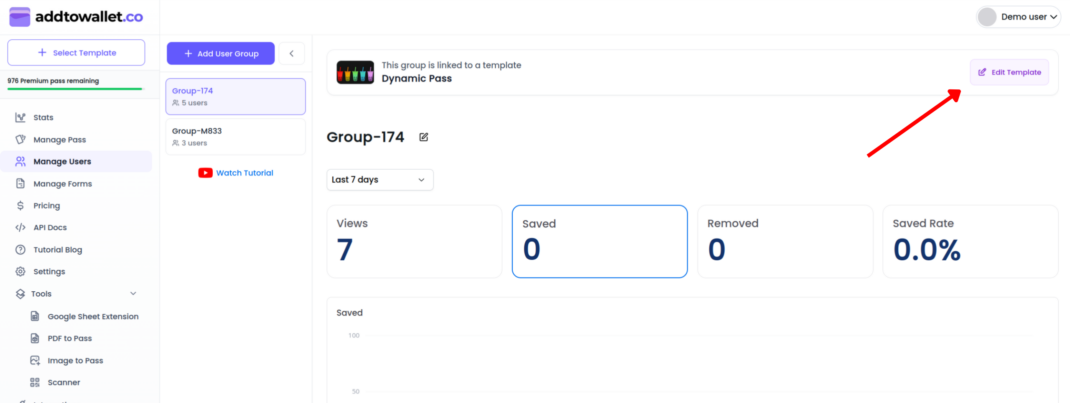
Step 1: Go to Manage Users
- Navigate to Manage Users
- Find the pass group you created
- Click on: Edit Template
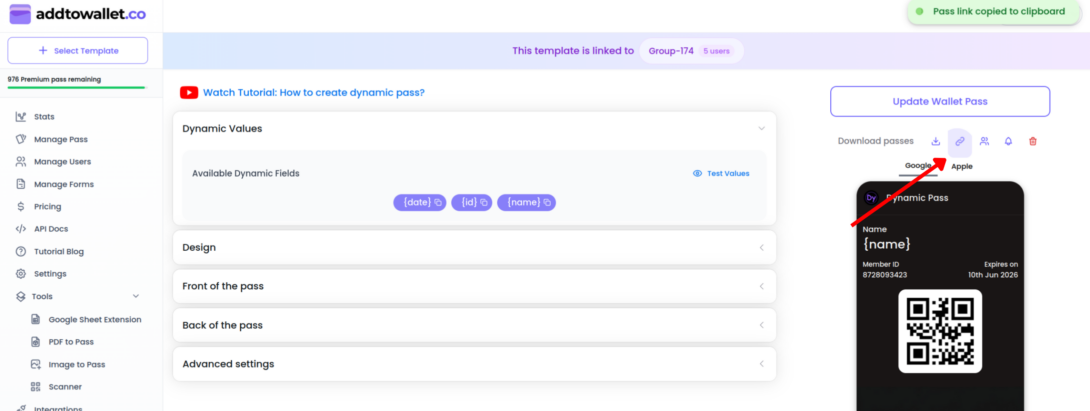
Step 2: Copy the Pass Link
- Look for Copy Pass Link
- Click on it
- Your pass generator URL will be copied
Step 3: Add the Add to Wallet Script to Your Website
(function () {

  const BASE_URL = "https://app.addtowallet.co/passgenerator/......";
  const DIV_ID   = "addtowallet-container";
  const QUERY_STRING = "";

  const container = document.getElementById(DIV_ID);
  if (!container) return;

  container.innerHTML = "";

  const btn = document.createElement("button");
  btn.style.cssText =
    "background:none;border:none;cursor:pointer;width:250px;height:72px;transition:transform 0.1s ease;";

  btn.onmousedown  = () => btn.style.transform = "scale(0.93)";
  btn.onmouseup    = () => btn.style.transform = "scale(1)";
  btn.onmouseleave = () => btn.style.transform = "scale(1)";

  const img = document.createElement("img");
  img.style.cssText = "width:100%;height:100%;";

  const ua = navigator.userAgent;
  img.src = (ua.includes("Safari") && !ua.includes("Chrome"))
    ? "https://s3.amazonaws.com/i.addtowallet.co/assets/add_to_apple_wallet.png"
    : "https://s3.amazonaws.com/i.addtowallet.co/assets/Add_to_Google_Wallet_badge.svg.png";

  btn.appendChild(img);
  container.appendChild(btn);

  btn.onclick = () => {
    const finalUrl = QUERY_STRING
      ? `${BASE_URL}?${QUERY_STRING}`
      : BASE_URL;

    window.open(finalUrl, "_blank");
  };

})();
- Now that you have your Pass Generator URL. It’s time to embed the script.
- Add this where you want the button to appear: <div id="addtowallet-container"></div>
- You can change
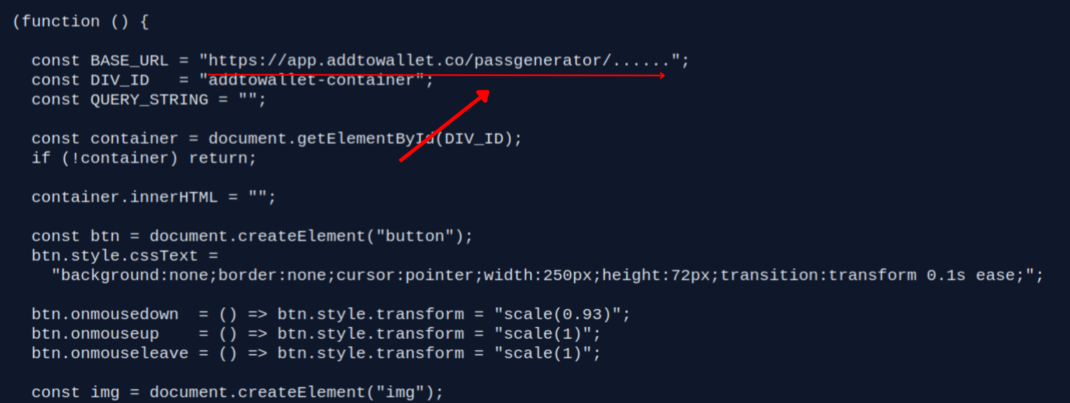
"addtowallet-container"to any ID you prefer just make sure it matches inside the script. - Replace the
BASE_URLwith the full URL you copied in step2 :
Adding Dynamic Query Parameters (Optional)
- If you want to personalize the wallet pass with dynamic values (like user name, membership ID, order number, etc.), you can update the
QUERY_STRINGvariable inside the script. - By default, it looks like this: const QUERY_STRING = "";
- If you want to pass values, update it in this format: const QUERY_STRING = "name=DemoUser&id=12345";