addtowallet.co
Create PassFeaturesPricingAPIBlog
Sign InGet Started Free
All guides▾
  • Guide10 reasons why incorporating Mobile Wallet Passes into your mobile strategy is essential
  • Guide5 Reasons why your store needs a wallet pass
  • GuideAdvantages of using Google and Apple wallet pass in businesses
  • GuideBest practices to design an amazing wallet pass
  • GuideBoost Engagement with Interactive Wallet Passes in Magazines
  • GuideConvert Pdf To Pass Using AddToWallet
  • GuideCreate Apple wallet pass for free
  • GuideCreate Apple Wallet passes for Your Business
  • GuideCreate Google wallet pass for free
  • GuideCreating Apple and Google Wallet Passes
  • GuideCreate Wallet Passes with the AddToWallet Zapier Integration
  • GuideDifferences between Apple and Google wallet
  • GuideEnhance audience interaction with wallet passes in Newspapers
  • GuideHidden Form Fields: Dynamic Expiry for Wallet Passes
  • GuideHow Google and Apple Wallet Pass Works
  • How-toHow to Add Amelia Booking Passes to Apple Wallet & Google Wallet
  • How-toHow to Add an Add to Wallet Button to Your Website
  • How-toHow to Add an Apple Wallet Button Easily
  • How-toHow to Add Bookly Booking Passes to Apple Wallet & Google Wallet
  • How-toHow to Add Location to Wallet Passes
  • How-toHow to Add Team Members to Your Account
  • How-toHow to Add Simply Schedule Appointments Bookings to Apple Wallet & Google Wallet
  • How-toHow to Add The Events Calendar Tickets to Apple Wallet & Google Wallet
  • How-toHow to Add LatePoint Appointments to Apple Wallet & Google Wallet
  • How-toHow to Add Sugar Calendar Tickets to Apple Wallet & Google Wallet
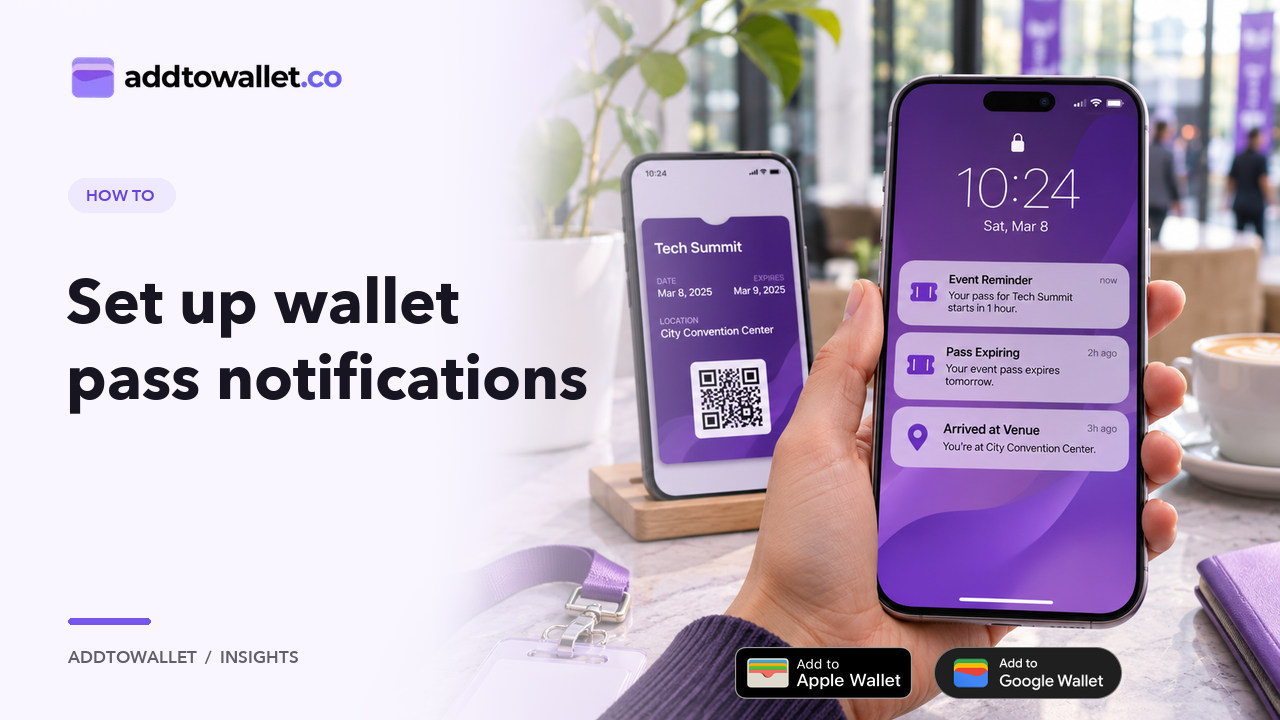
  • How-toHow to configure notifications for Apple & Google wallet passes
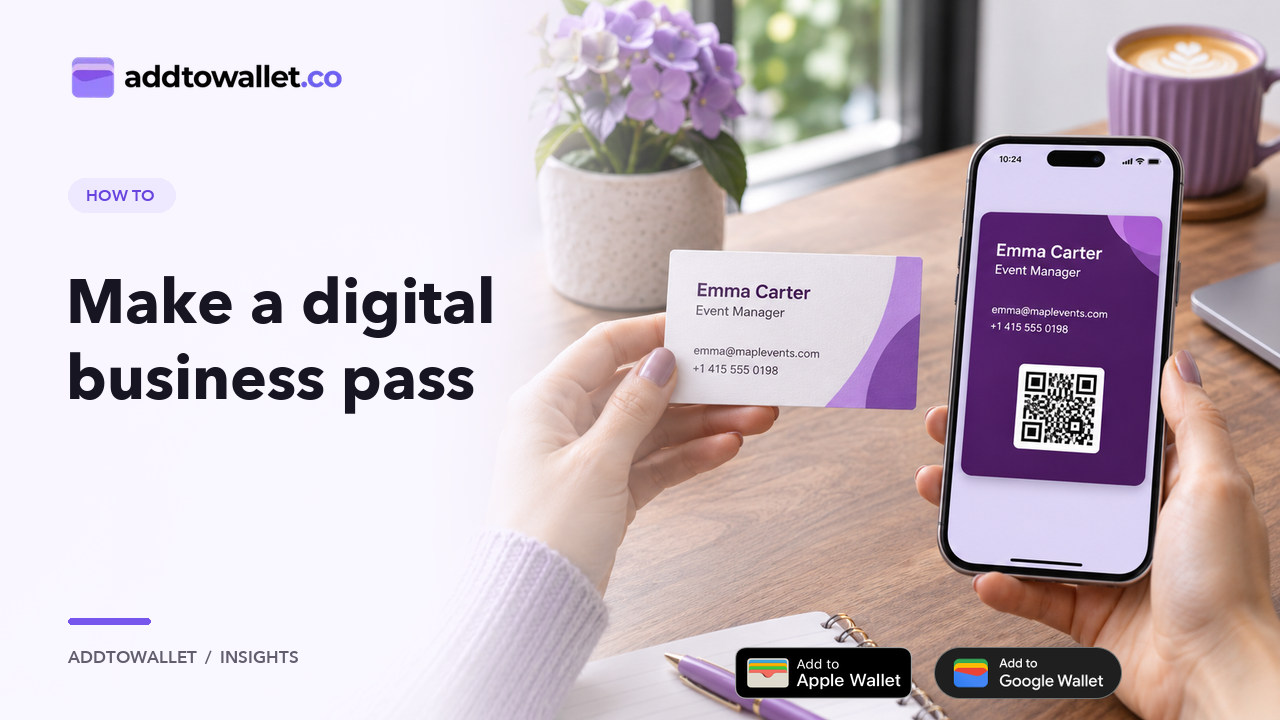
  • How-toHow to create a business pass for Apple and Google wallet
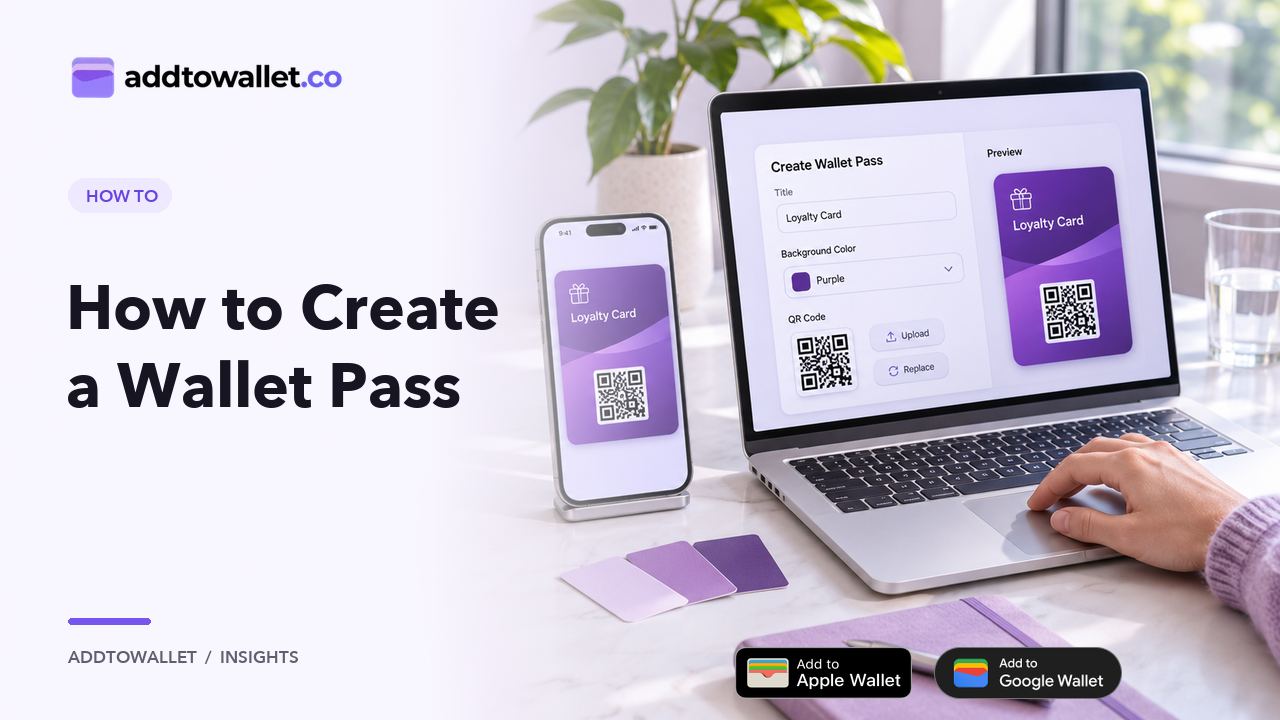
  • How-toHow to Create a wallet pass?
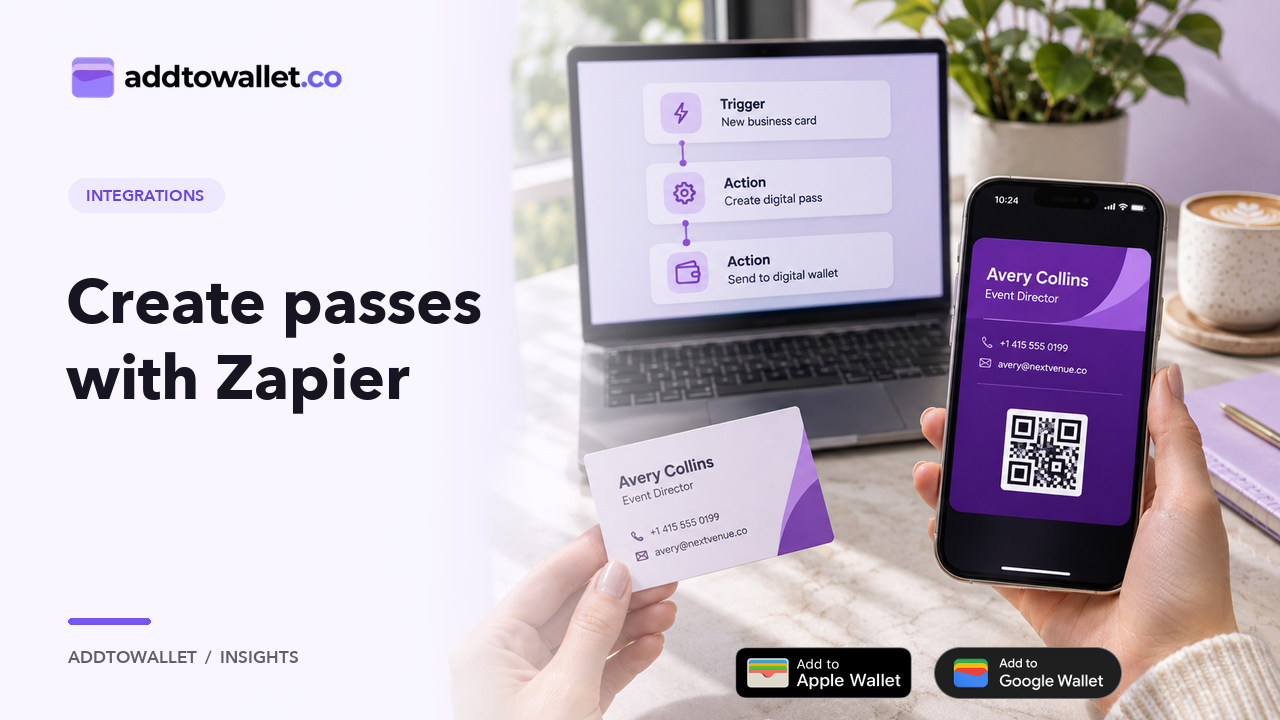
  • How-toHow to create a wallet pass using Zapier Integration?
  • How-toHow to create digital Concert Tickets with AddToWallet.co
  • How-toHow to create dynamic passes and manage users in AddToWallet
  • How-toHow To Create Gift Cards in Bulk
  • How-toHow to Create Hair Salon Gift Cards in Minutes
  • How-toCreate Loyalty Wallet Pass Using AddToWallet
  • How-toHow to Create Mobile Wallet Passes Using Google Sheets
  • How-toHow to Create & Scan Dynamic Wallet Passes Using AddToWallet
  • How-toHow To Distribute Google or Apple Wallet Pass
  • How-toHow to duplicate a wallet pass?
  • How-toHow to embed Google Wallet or Apple Wallet button on Shopify
  • How-toHow to embed Google wallet or Apple wallet button on Squarespace
  • How-toHow to embed Google Wallet or Apple Wallet button on Weebly
  • How-toHow to embed Google Wallet or Apple wallet button on Wix
  • How-toHow to embed Google Wallet or Apple Wallet button on WordPress
  • How-toHow to Generate JSON for Apple & Google Wallet Passes
  • How-toHow to generate leads using Google wallet or Apple wallet Pass wallet pass?
  • How-toHow to Use AddToWallet Node on N8N
  • How-toHow to integrate make.com with AddToWallet.co?
  • How-toHow to Secure Wallet Passes with Access Code Protection
  • How-toHow to Send Notifications Using Wallet Pass
  • How-toHow to Set Up Custom Domains with AddToWallet
  • How-toHow to Share Wallet Passes Using Flyers
  • How-toHow to test Apple Wallet beacons
  • How-toAddToWallet Order Pass App on Shopify
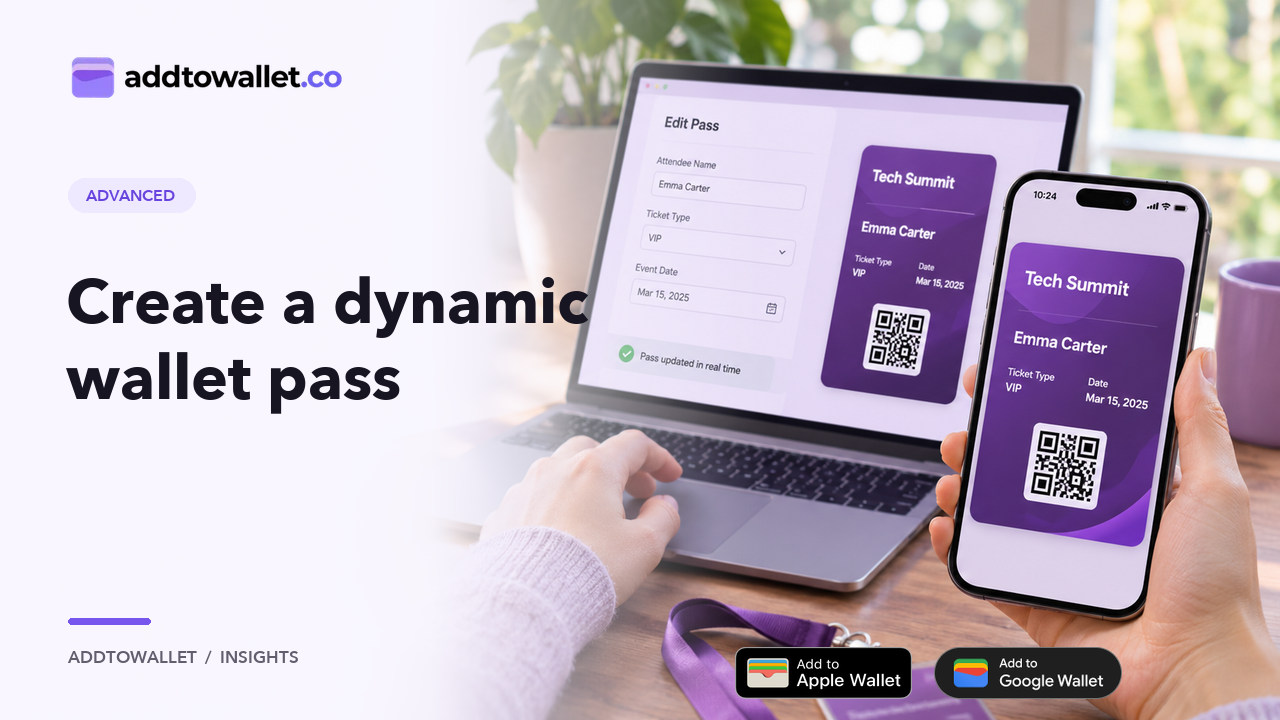
  • How-toHow to create dynamic wallet pass
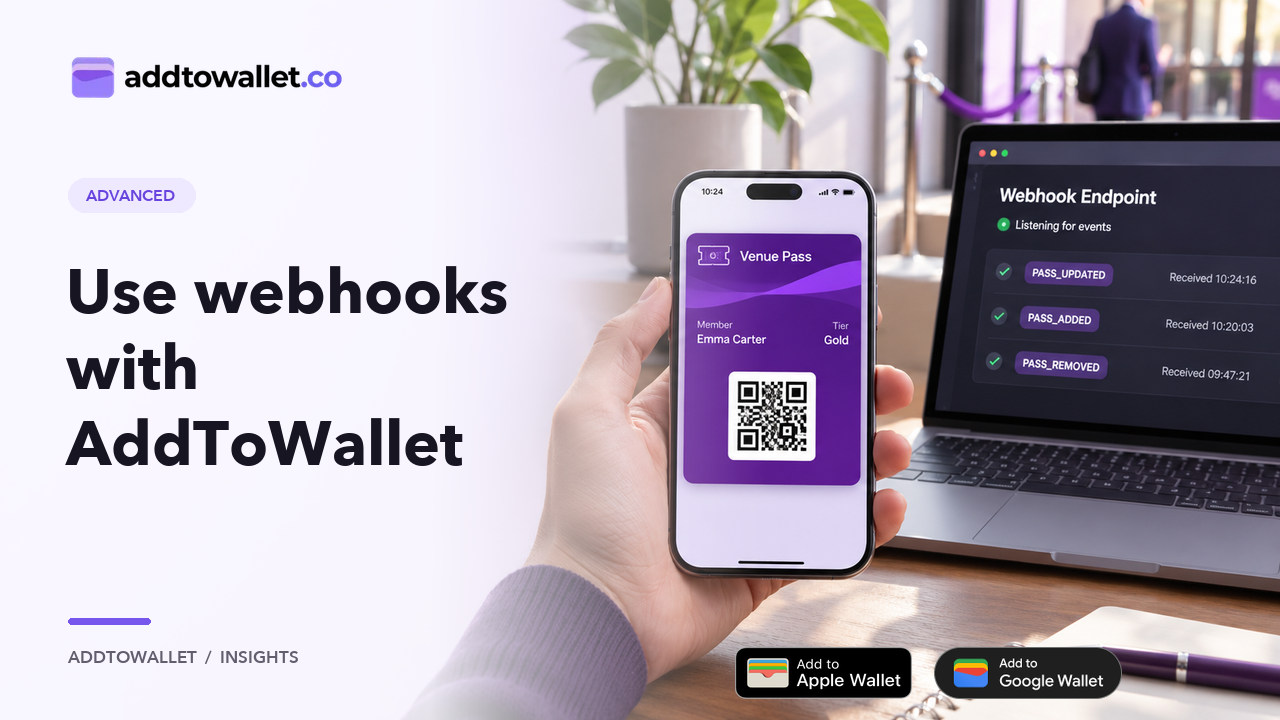
  • How-toHow to Use Webhooks with AddToWallet
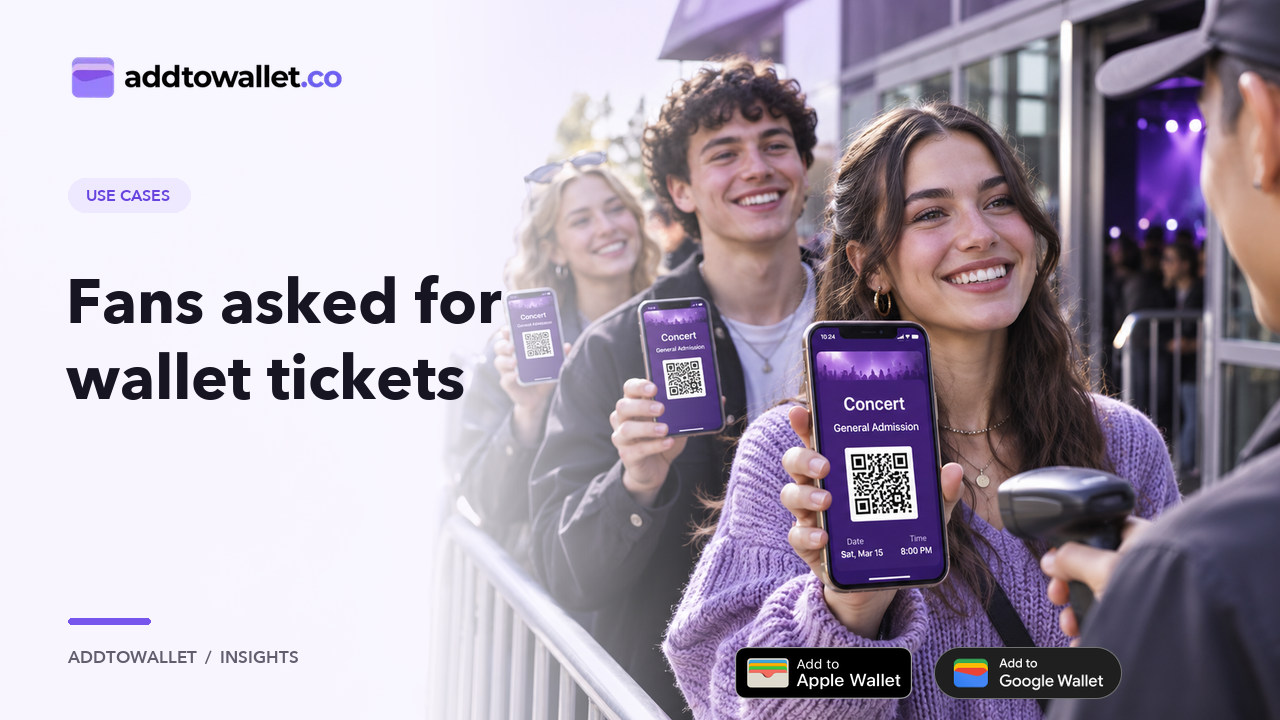
  • GuideOur Audience Asked for Wallet Tickets AddToWallet.co Delivered
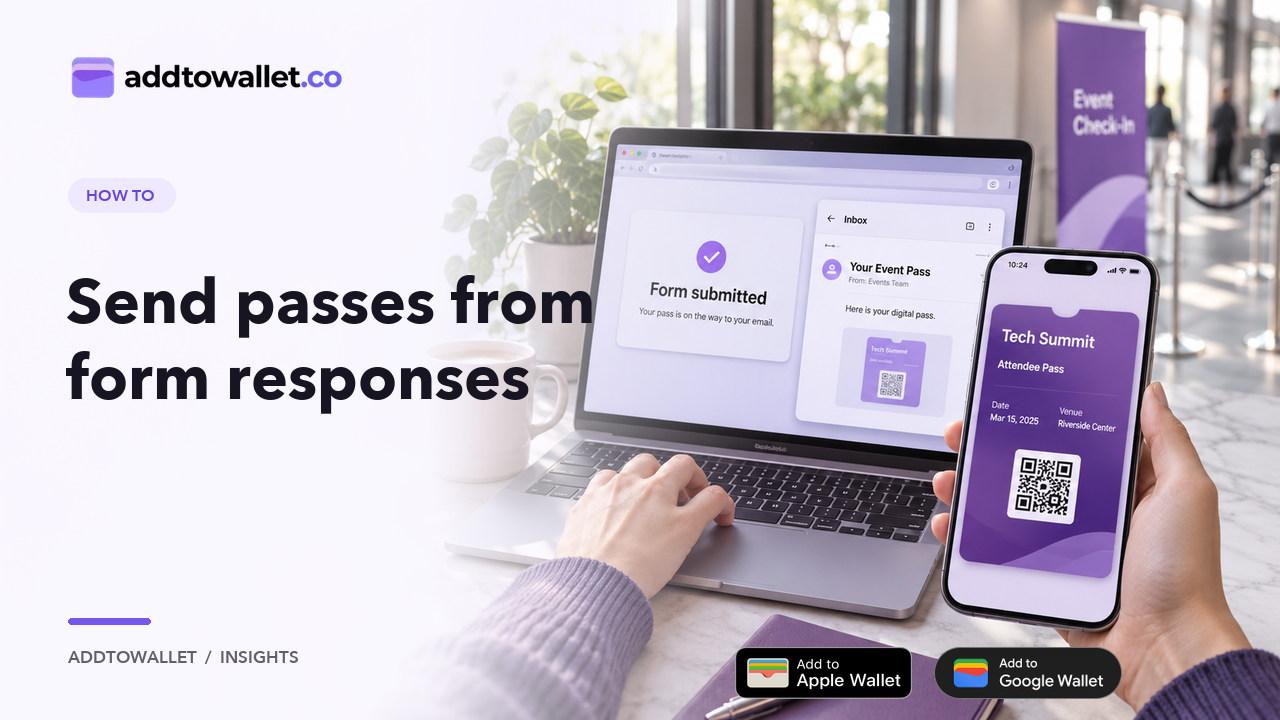
  • GuideCreate Wallet Passes from Form Responses
  • GuideWallet Pass Generator for Google Sheets
  • GuideWallet Passes for Wedding Invitations

Guide

Differences between Apple and Google wallet

By AddToWallet Team·Published March 20, 2024·Updated November 5, 2026·2 min read

When enabling the pass version for Google Wallet using AddToWallet, it involves transferring data to Google servers, so it must be enabled when creating the template.

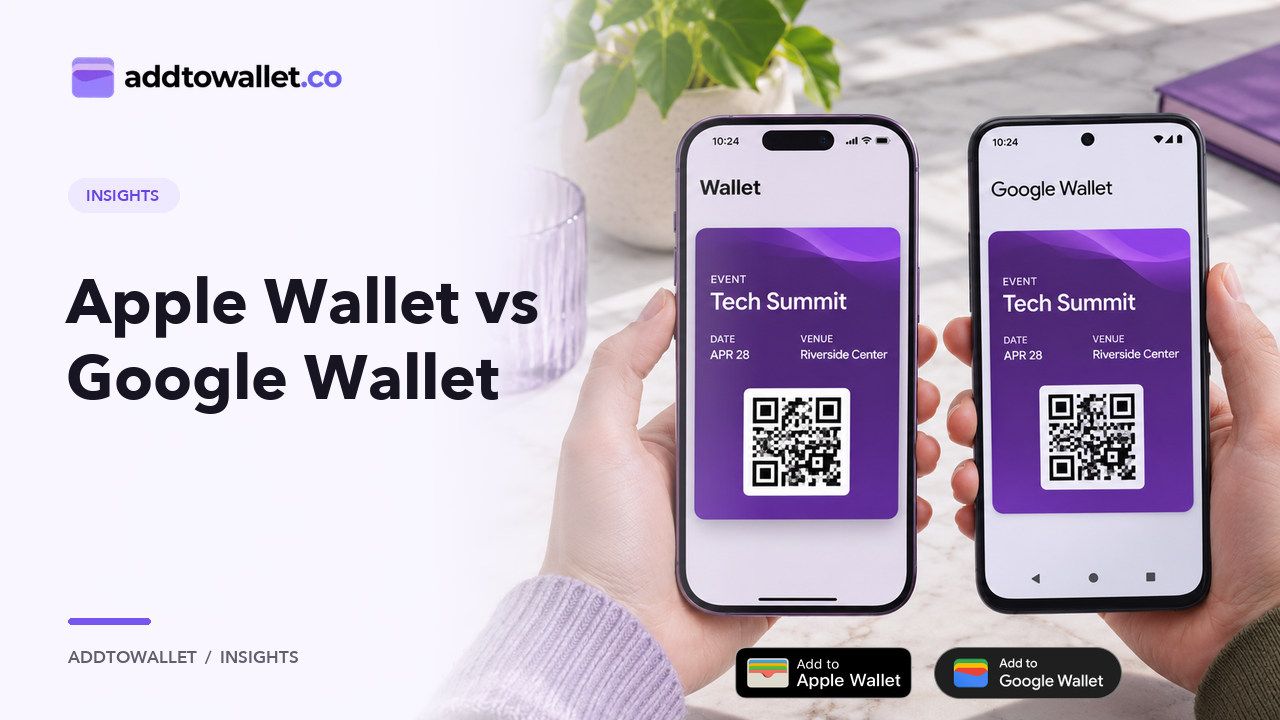
Although Apple Wallet and Google Wallet passe’s share similarities, there are notable differences both in design and technical aspects. Here's an overview of the key variances:

Adoption Rate

Apple Wallet comes pre-installed on all iOS devices, making it readily accessible. In contrast, Google Wallet must be downloaded separately on most Android devices. However, it is seamlessly integrated with users' Google accounts, which simplifies pass management.

Storage Location

Google Wallet stores passes in users' Google accounts, allowing for easy synchronization across multiple devices.

Pass Structure

Apple Wallet passes feature a front and back layout. The front remains static, while the back allows users to scroll for more information. Google Wallet passes do not have a back side but support scrolling. Importantly, essential data is prominently displayed at the top, similar to the front of Apple Wallet passes.

Links

Apple Wallet supports a wide variety of clickable links. Google Wallet, on the other hand, uses dedicated link fields, limiting link functionality within text. Tools like AddToWallet offer special link fields compatible with both Apple and Google Wallet passes.

Text Content

Apple Wallet allows unlimited text on the back fields of passes. Conversely, Google Wallet restricts visible text, cropping it and revealing more only when the user interacts with the pass.

Logo Format

Google Wallet requires a square, rounded logo format with a minimum resolution of 660x660 pixels. A 15% margin is also necessary to prevent the logo from being cropped.

Location-Based Features

Both platforms support location-based notifications using GPS coordinates. However, Apple Wallet allows for custom messages when users are near a specific location, a feature that Google Wallet currently lacks.

Beacon Support

Apple Wallet supports iBeacons, enabling location-triggered interactions. In contrast, Google Wallet does not currently offer support for beacon-based notifications.

Personalized and Dynamic Content

Both Apple and Google Wallet passes allow for personalization and dynamic updates, enabling real-time content changes.

Barcodes

Both platforms support 1D and 2D barcodes, making them suitable for a variety of scanning systems.

Create Wallet Pass Now

All guides

  • Guide10 reasons why incorporating Mobile Wallet Passes into your mobile strategy is essential
  • Guide5 Reasons why your store needs a wallet pass
  • GuideAdvantages of using Google and Apple wallet pass in businesses
  • GuideBest practices to design an amazing wallet pass
  • GuideBoost Engagement with Interactive Wallet Passes in Magazines
  • GuideConvert Pdf To Pass Using AddToWallet
  • GuideCreate Apple wallet pass for free
  • GuideCreate Apple Wallet passes for Your Business
  • GuideCreate Google wallet pass for free
  • GuideCreating Apple and Google Wallet Passes
  • GuideCreate Wallet Passes with the AddToWallet Zapier Integration
  • GuideDifferences between Apple and Google wallet
  • GuideEnhance audience interaction with wallet passes in Newspapers
  • GuideHidden Form Fields: Dynamic Expiry for Wallet Passes
  • GuideHow Google and Apple Wallet Pass Works
  • How-toHow to Add Amelia Booking Passes to Apple Wallet & Google Wallet
  • How-toHow to Add an Add to Wallet Button to Your Website
  • How-toHow to Add an Apple Wallet Button Easily
  • How-toHow to Add Bookly Booking Passes to Apple Wallet & Google Wallet
  • How-toHow to Add Location to Wallet Passes
  • How-toHow to Add Team Members to Your Account
  • How-toHow to Add Simply Schedule Appointments Bookings to Apple Wallet & Google Wallet
  • How-toHow to Add The Events Calendar Tickets to Apple Wallet & Google Wallet
  • How-toHow to Add LatePoint Appointments to Apple Wallet & Google Wallet
  • How-toHow to Add Sugar Calendar Tickets to Apple Wallet & Google Wallet
  • How-toHow to configure notifications for Apple & Google wallet passes
  • How-toHow to create a business pass for Apple and Google wallet
  • How-toHow to Create a wallet pass?
  • How-toHow to create a wallet pass using Zapier Integration?
  • How-toHow to create digital Concert Tickets with AddToWallet.co
  • How-toHow to create dynamic passes and manage users in AddToWallet
  • How-toHow To Create Gift Cards in Bulk
  • How-toHow to Create Hair Salon Gift Cards in Minutes
  • How-toCreate Loyalty Wallet Pass Using AddToWallet
  • How-toHow to Create Mobile Wallet Passes Using Google Sheets
  • How-toHow to Create & Scan Dynamic Wallet Passes Using AddToWallet
  • How-toHow To Distribute Google or Apple Wallet Pass
  • How-toHow to duplicate a wallet pass?
  • How-toHow to embed Google Wallet or Apple Wallet button on Shopify
  • How-toHow to embed Google wallet or Apple wallet button on Squarespace
  • How-toHow to embed Google Wallet or Apple Wallet button on Weebly
  • How-toHow to embed Google Wallet or Apple wallet button on Wix
  • How-toHow to embed Google Wallet or Apple Wallet button on WordPress
  • How-toHow to Generate JSON for Apple & Google Wallet Passes
  • How-toHow to generate leads using Google wallet or Apple wallet Pass wallet pass?
  • How-toHow to Use AddToWallet Node on N8N
  • How-toHow to integrate make.com with AddToWallet.co?
  • How-toHow to Secure Wallet Passes with Access Code Protection
  • How-toHow to Send Notifications Using Wallet Pass
  • How-toHow to Set Up Custom Domains with AddToWallet
  • How-toHow to Share Wallet Passes Using Flyers
  • How-toHow to test Apple Wallet beacons
  • How-toAddToWallet Order Pass App on Shopify
  • How-toHow to create dynamic wallet pass
  • How-toHow to Use Webhooks with AddToWallet
  • GuideOur Audience Asked for Wallet Tickets AddToWallet.co Delivered
  • GuideCreate Wallet Passes from Form Responses
  • GuideWallet Pass Generator for Google Sheets
  • GuideWallet Passes for Wedding Invitations
addtowallet.co

AddToWallet is a Mobile Wallet Pass creator to design custom Apple & Google Wallet passes for coupons, deals, gift cards, and loyalty cards.

Use Cases

  • Insurance
  • Fund raising
  • Fan-clubs
  • Restaurant
  • Higher Education

Solutions

  • Loyalty Pass
  • Coupons
  • Gift Cards
  • Event Tickets
  • Google Wallet
  • WalletPassBuilder

Company

  • FAQs
  • Blog
  • Product Updates
  • Privacy policy
  • Terms & conditions
  • Trust Center
© 2026 Hazelnut Ventures LLC