
How to Create Mobile Wallet Passes Using Google Sheets
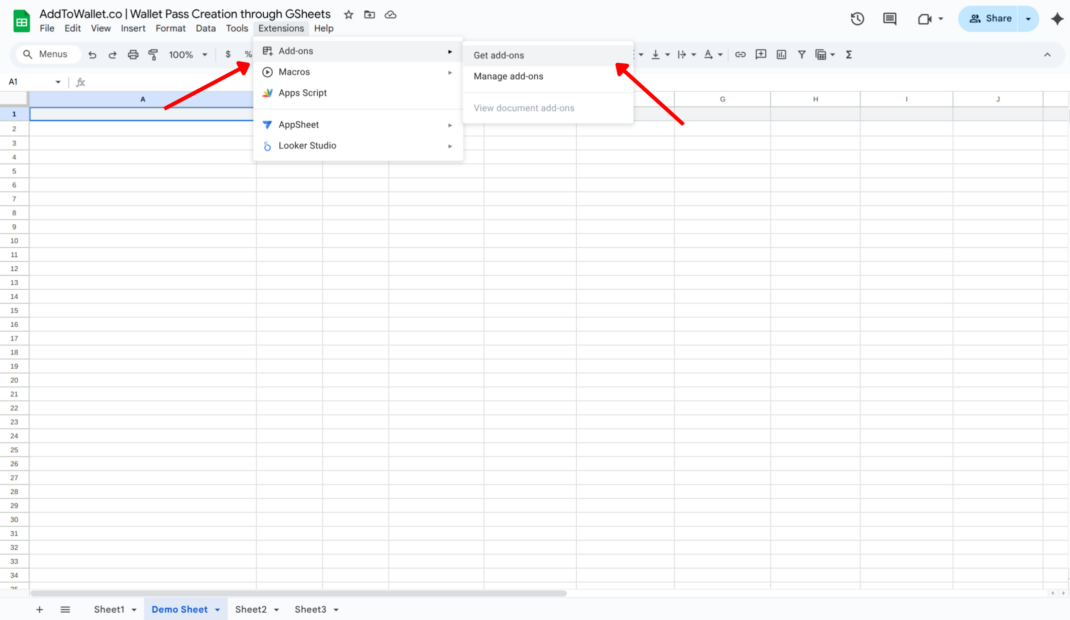
Step 1: Open Add-ons Store
Open the spreadsheet, click on Extensions, and then select Get add-ons.
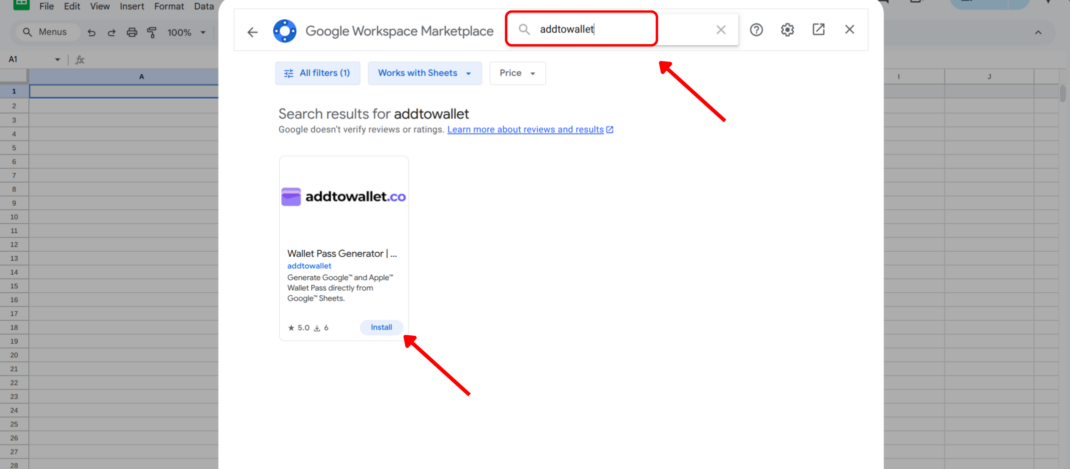
Step 2: Find & Install Wallet Pass GeneratorAdd-on
In the Add-ons store, search for AddToWallet and click Install. Or you can open it directly via this link: https://workspace.google.com/u/0/marketplace/app/wallet_pass_generator_addtowalletco/886148488452
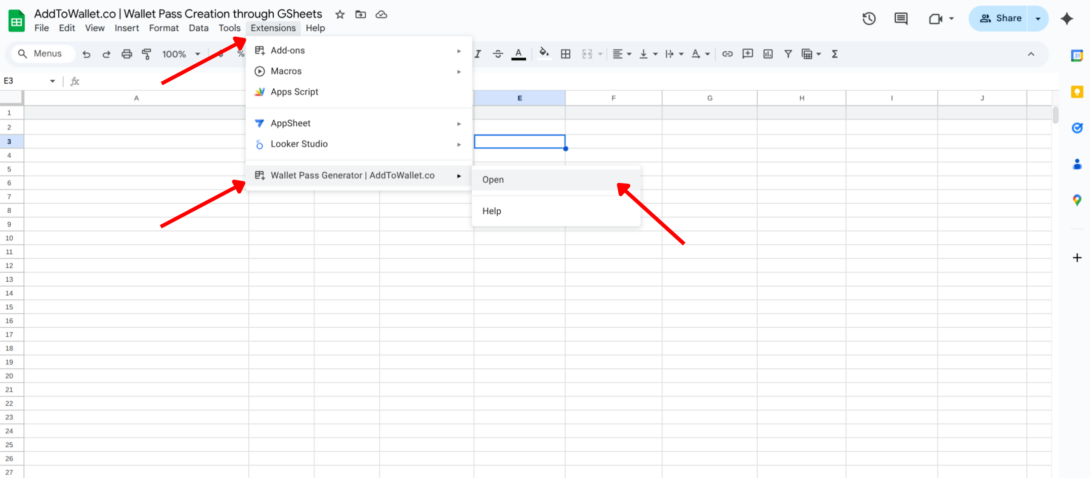
Step 3: Open Wallet Pass Generator Add-on
After installing, click on Extensions, select Wallet Pass Generator, and then click Open.
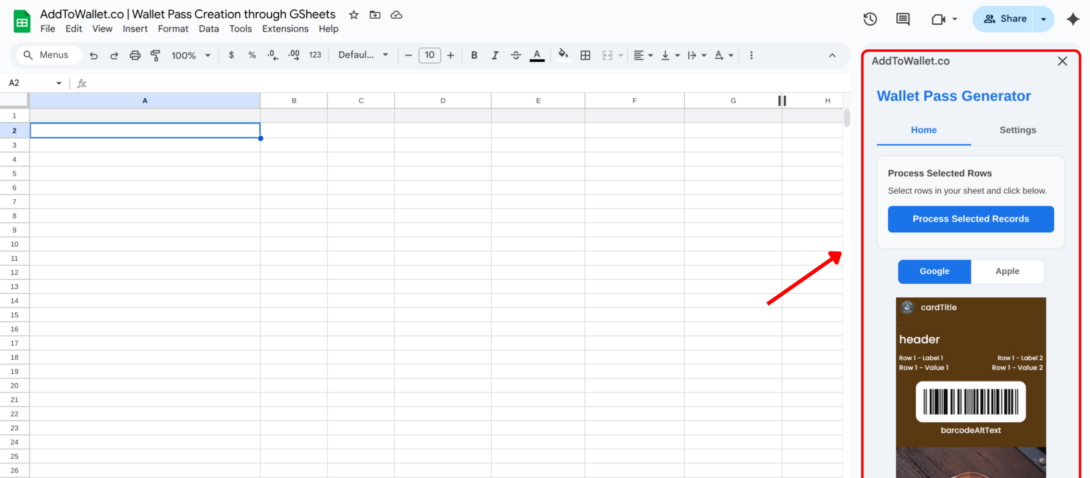
Once opened, the add-on will appear in the sidebar, like this.
Step 4: Configure & Fill Template
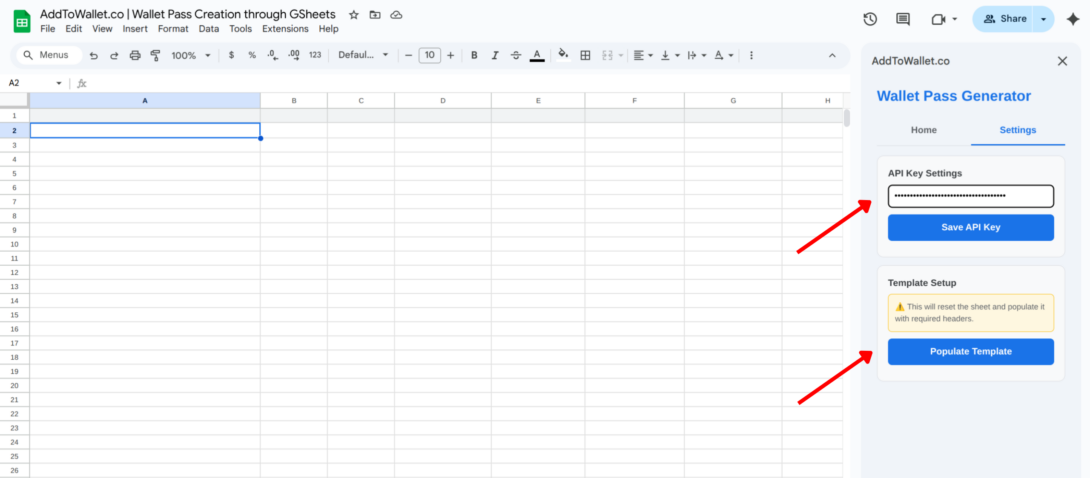
Click on Settings and paste your API key at the top. Then click Populate Template to add the template to your sheet, and fill out the rows based on the pass you want to create.
Step 5: Generate & Share Pass Links
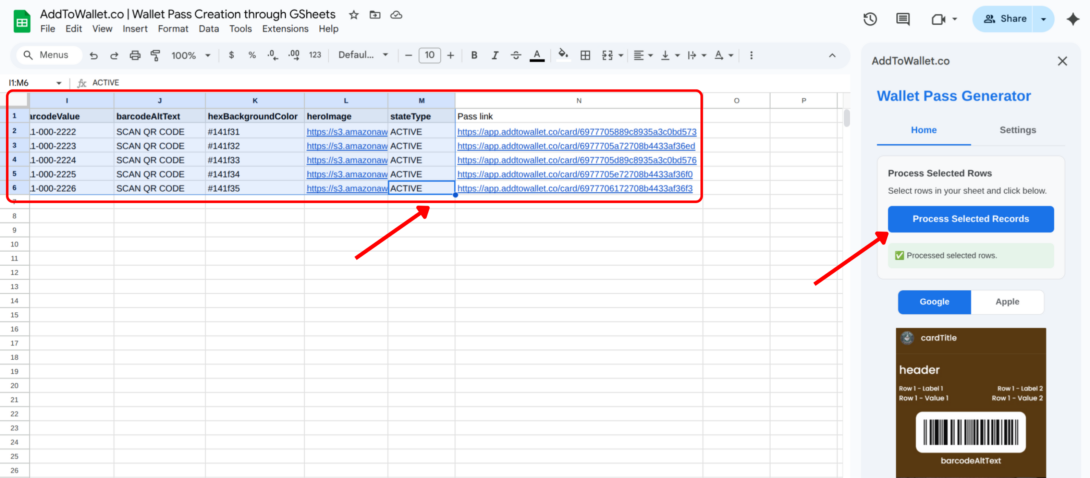
- Select the rows you want to create passes for
- Click Process Selected Rows
- A new column will be created with a pass link for each row
- Share this link to add the pass directly to a phone, just like in the AddToWallet web app
That’s it! You now know how to create and share mobile wallet passes directly from Google Sheets using the AddToWallet add-on. This approach makes it easy to generate passes at scale, manage data in one place, and instantly share wallet links with your users.
Whether you’re creating loyalty cards, coupons, event tickets, or gift passes, this method helps you streamline pass creation without writing any code.
Get Started For Free
Join the expanding network of more than 10k+ users
No credit card needed to start trial
addtowallet.co © All Rights Reserved