
How to Add Amelia Booking Passes to Apple Wallet & Google Wallet
AddToWallet now lets you connect Amelia with WordPress and give customers easy access to their bookings through Apple Wallet or Google Wallet.
1) Install the Plugin
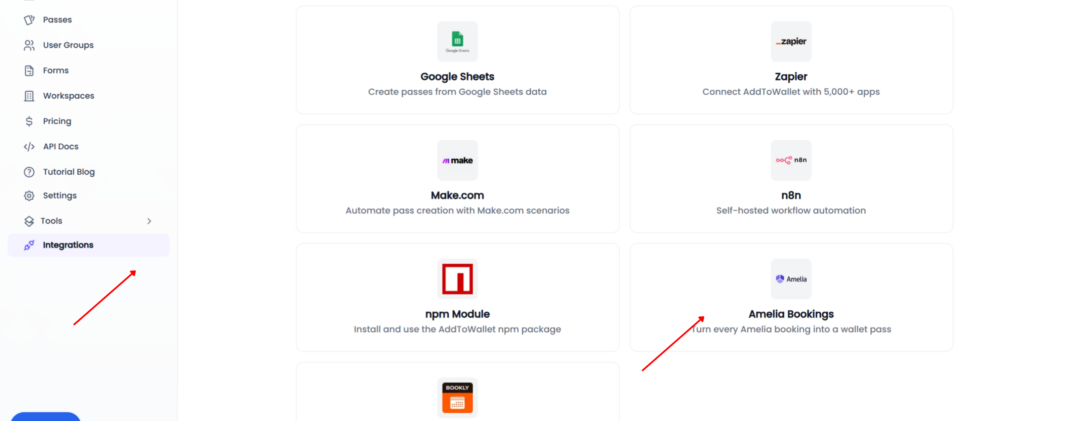
In your AddToWallet dashboard, click Integrations in the sidebar, then select Amelia.
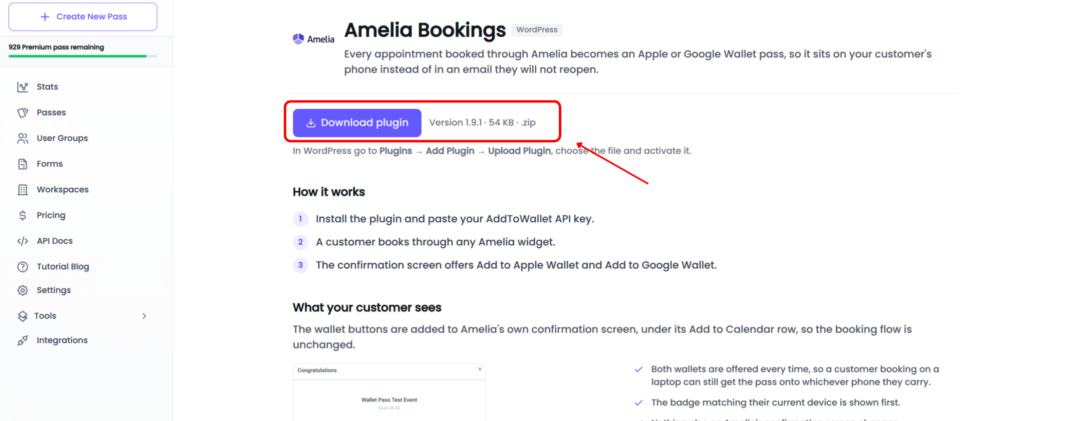
Click Download Plugin to download the plugin
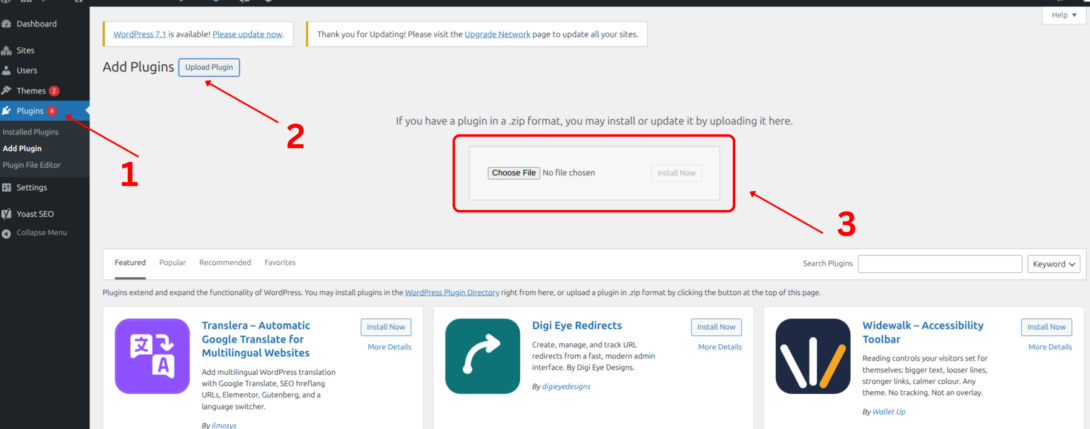
2) Install the Plugin
Go to plugins and upload this plugin
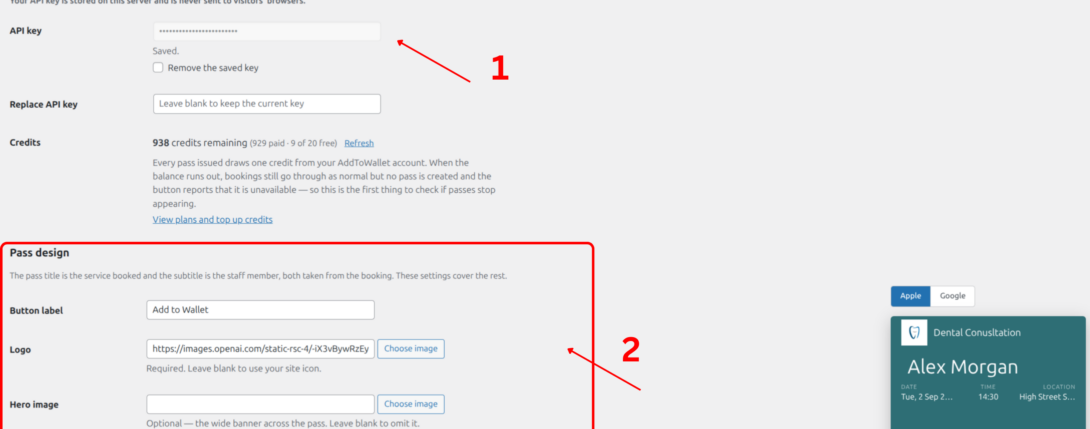
3) Configure Plugin
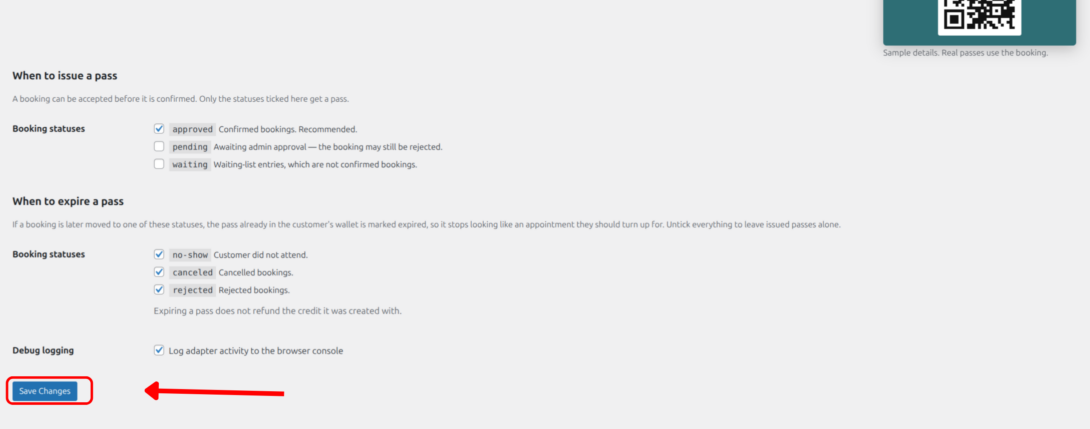
Enter your API key, configure your pass image and other settings, then click Save.
4) Add Your Amelia Booking to Apple Wallet or Google Wallet
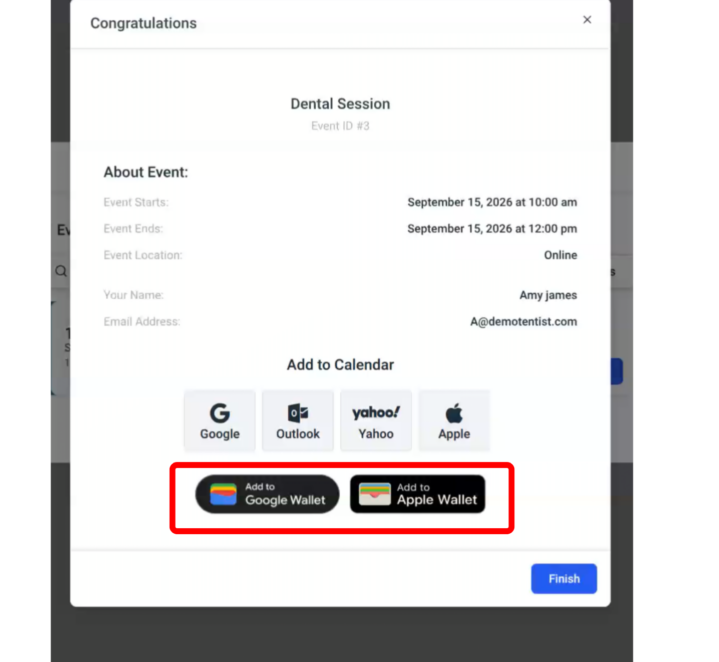
On the confirmation page, you’ll see Add to Google Wallet and Add to Apple Wallet buttons for the booking you just created.
Click either button to add the pass to your Apple Wallet or Google Wallet.
That’s it! Connect Amelia with AddToWallet today and let your customers add their bookings to Apple Wallet or Google Wallet for quick, easy access.
Get Started For Free
Join the expanding network of more than 10k+ users
No credit card needed to start trial
addtowallet.co © All Rights Reserved