
How to test Apple Wallet beacons
Apple Wallet beacons
When someone with your pass on their iPhone walks close to a matching iBeacon, Apple Wallet can show your message on the lock screen. This guide covers how to add beacon details on your pass and how to test them before you deploy physical hardware.
Add a beacon in Notification Settings
Beacon setup lives inside notifications—one place to enable proximity alerts and enter beacon details.
Step 1
Open your pass → Notification Settings
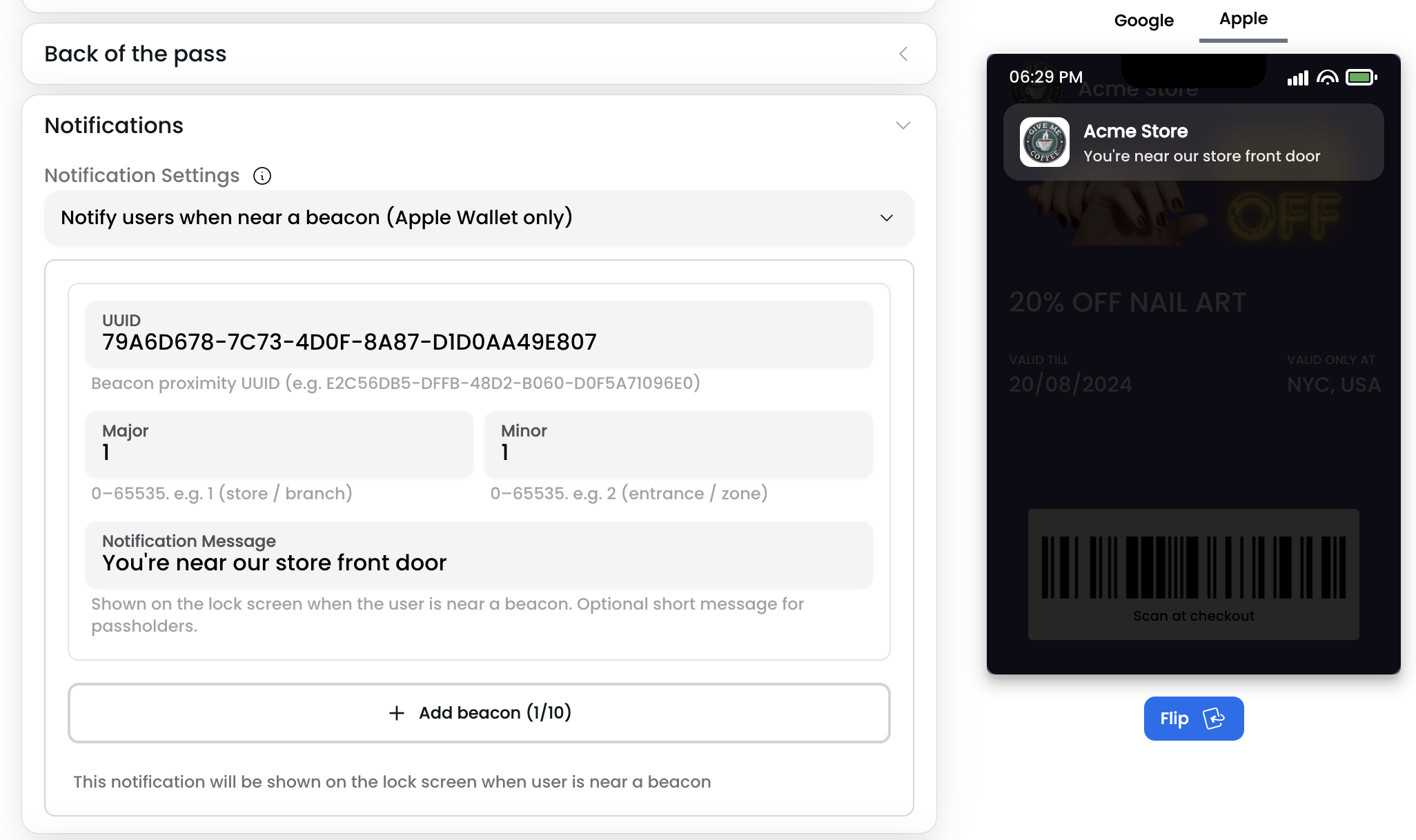
Create or edit a pass, scroll to Notification Settings, and select Notify users when near a beacon (Apple Wallet only).
Then enter:
- UUID — beacon proximity UUID
- Major and Minor — 0–65535 (must match your physical or test beacon)
- Notification message — optional lock-screen text
Save the pass and add it to Apple Wallet on a test iPhone. You can add up to 10 beacons on one pass.
Test on your Mac with Beacon Walker
Try it with Beacon Walker before you deploy hardware. Use the same UUID, major, and minor on your Mac as on the pass. Your iPhone only needs the pass in Wallet—you do not need a physical beacon for this test.
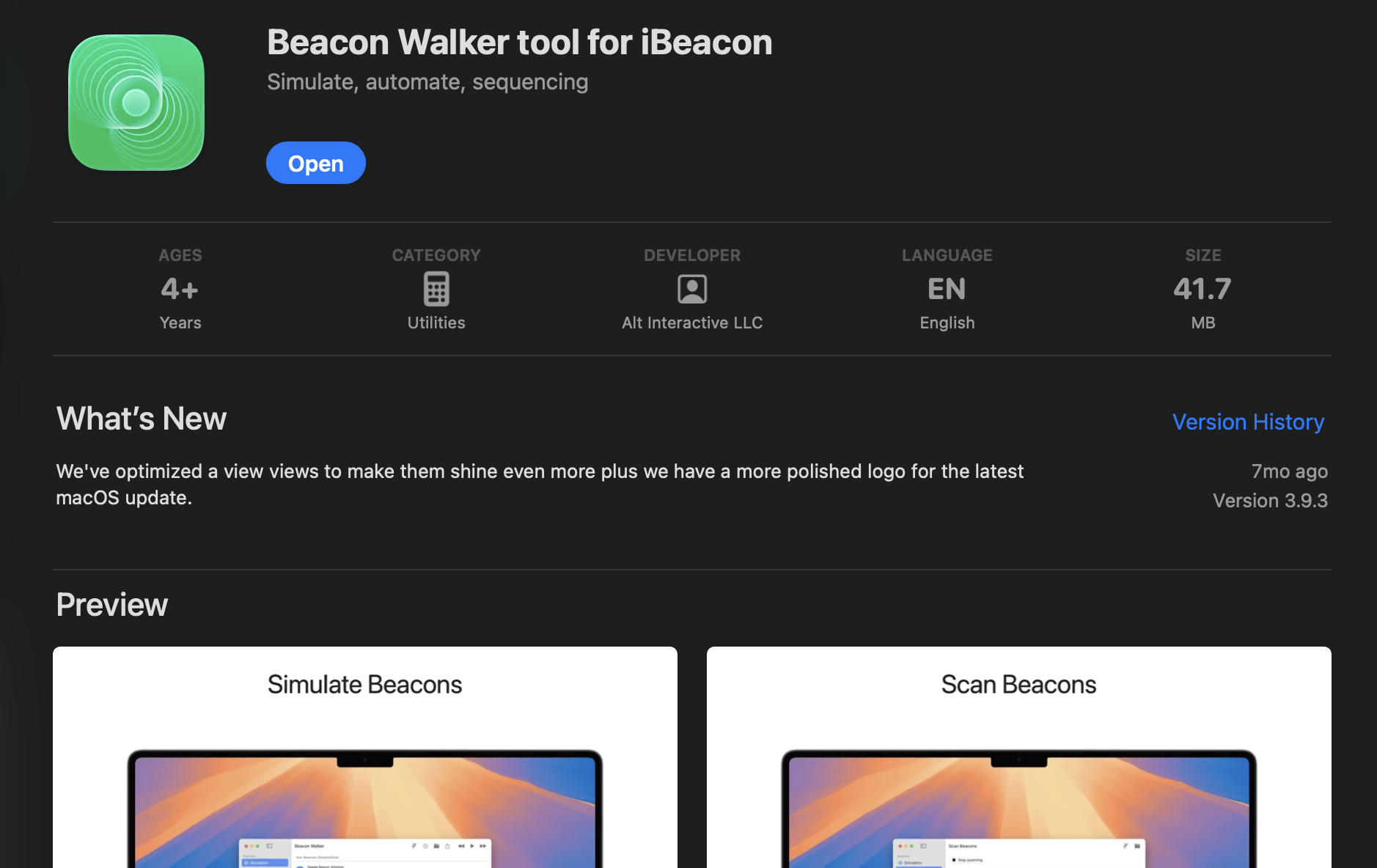
Step 1 — Install
On your Mac, install Beacon Walker from the Mac App Store.
Download Beacon Walker for Mac
Step 2 — Add beacon
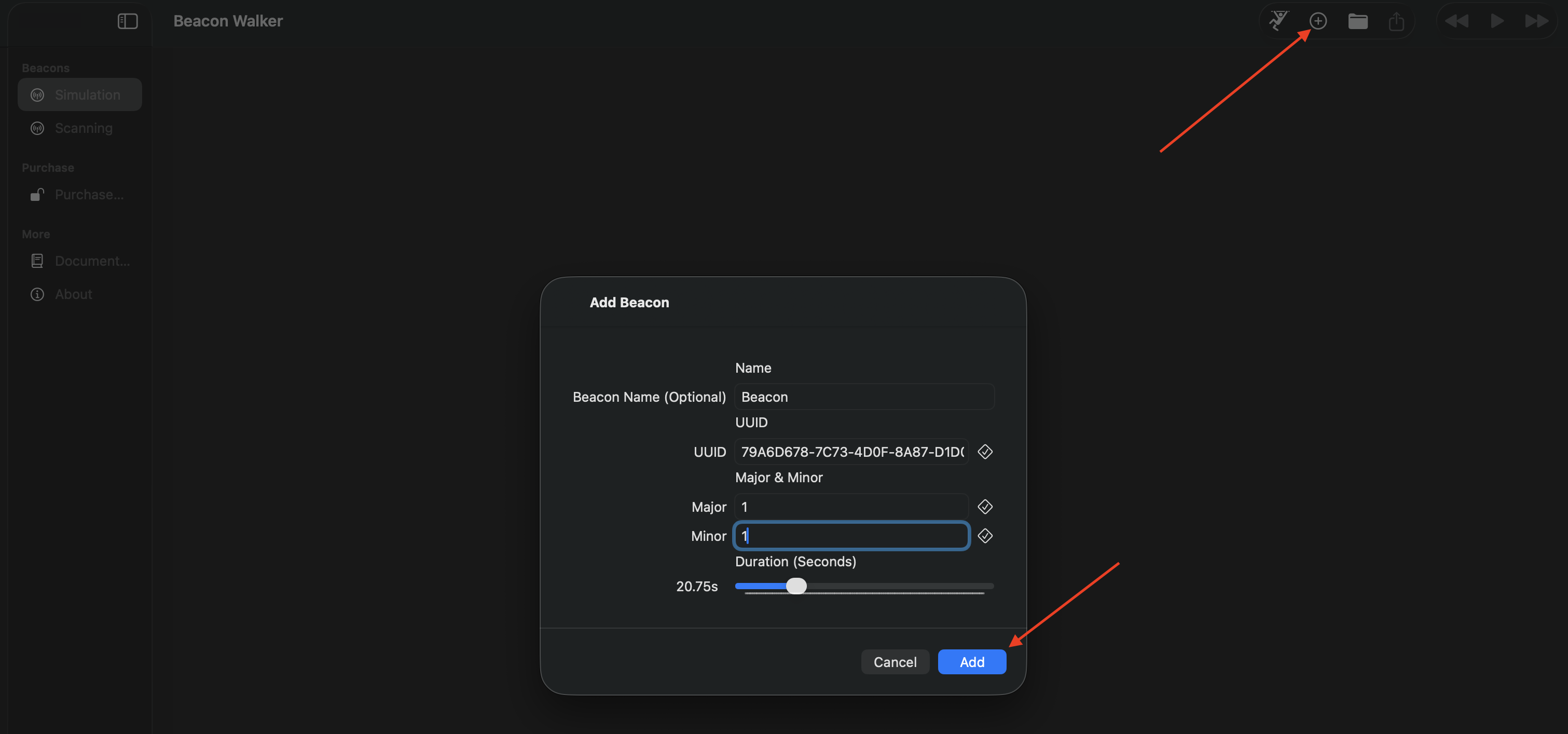
In Beacon Walker, add a beacon using the same UUID, major, and minor as on your pass.
Step 3 — Simulate
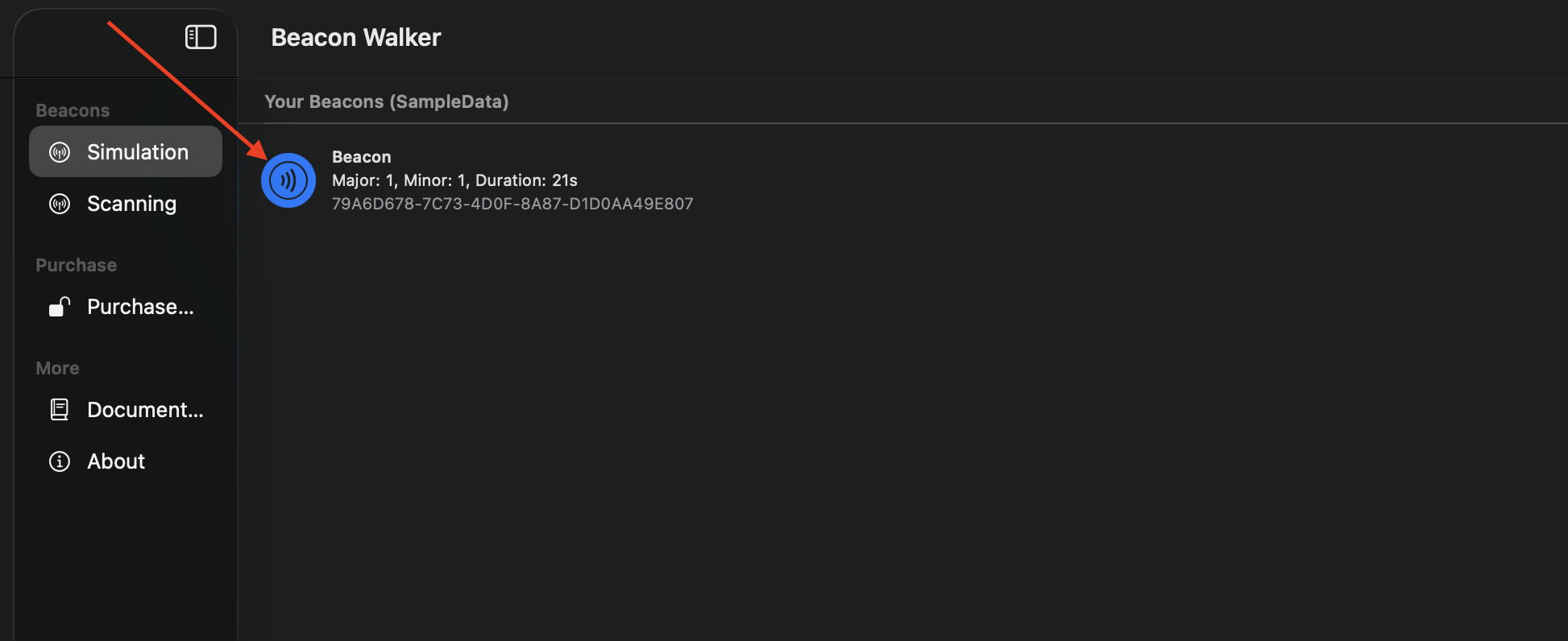
Select that beacon in the app and tap Simulate so your Mac broadcasts as an iBeacon.
Step 4 — Walk up with iPhone
On an iPhone with the pass in Apple Wallet, walk near the Mac (Bluetooth on). Your beacon notification should appear on the lock screen.
Frequently asked questions
Does this work on Google Wallet?
No. Beacon proximity notifications are Apple Wallet only.
Why is my test not showing?
Check that UUID, major, and minor match exactly on the pass and in Beacon Walker, the pass is in Wallet on the iPhone, Bluetooth is on, and you saved the pass after adding the beacon.
Can I use more than one beacon?
Yes. You can add up to 10 beacons on a single pass, each with its own UUID, major, minor, and message.
Get Started For Free
Join the expanding network of more than 10k+ users
No credit card needed to start trial
addtowallet.co © All Rights Reserved