
addToWallet.co
Workspaces
Pricing
API Docs
Tutorial Blog
Tools
Google Sheet Extension
PDF to Pass
Image to Pass
QR Code Generator
Barcode Generator
Integrations
© 2026 Hazelnut Ventures LLC. All Rights Reserved.
FAQsTrustContact Us
Bookly logo

Bookly

WordPress

Every appointment booked through Bookly becomes an Apple or Google Wallet pass, so it sits on your customer's phone instead of in an email they will not reopen.

Download pluginVersion 2.0.0 · 101 KB · .zip

In WordPress go to Plugins → Add Plugin → Upload Plugin, choose the file and activate it.

Step-by-step setup guide, with screenshots →

Already using 1.x? 2.0 installs into a new folder, so WordPress treats it as a separate plugin. When you activate it, it copies your 1.x settings and the record of every pass 1.x issued, and from then on it creates, updates and expires the passes. 1.x stays switched off, with a reminder, until you deactivate and delete it.

How it works

  1. 1Install the plugin and paste your AddToWallet API key on its Settings tab.
  2. 2Design the pass on the Pass design tab, or keep the default.
  3. 3A customer books through any Bookly form on your site.
  4. 4The last step of the form offers Add to Apple Wallet and Add to Google Wallet.

What your customer sees

The wallet buttons are added to the last step of Bookly's own booking form, right above its Start over button, so the booking flow is unchanged.
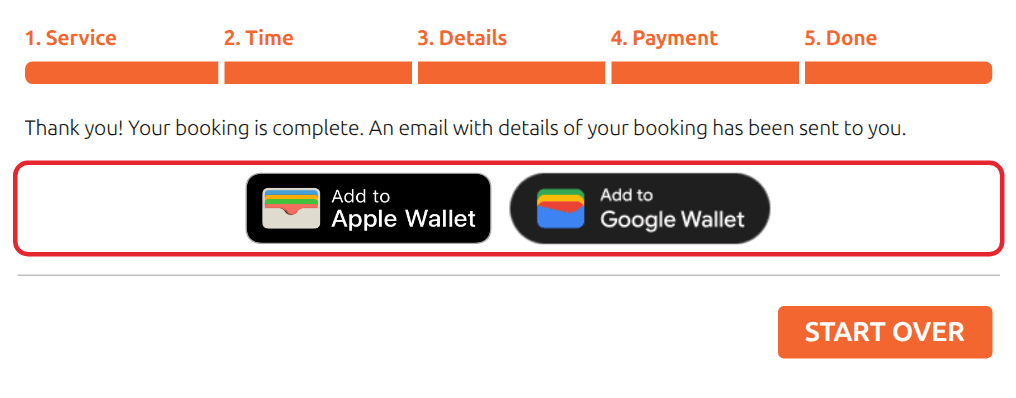
The last step of a Bookly booking form showing Add to Apple Wallet and Add to Google Wallet buttons above Start over
  • Both wallets are offered every time, so a customer booking on a laptop can still get the pass onto whichever phone they carry.
  • The pass carries the service, the customer's name, the date and time and the staff member, with a barcode staff can scan.
  • If the appointment is rescheduled, the pass already in their wallet is updated to match.
  • Reloading the page, or booking again with Start over, never creates a second pass for the same booking.

What you configure

Four tabs in wp-admin: Pass design, Bookings & passes, Settings and Help.
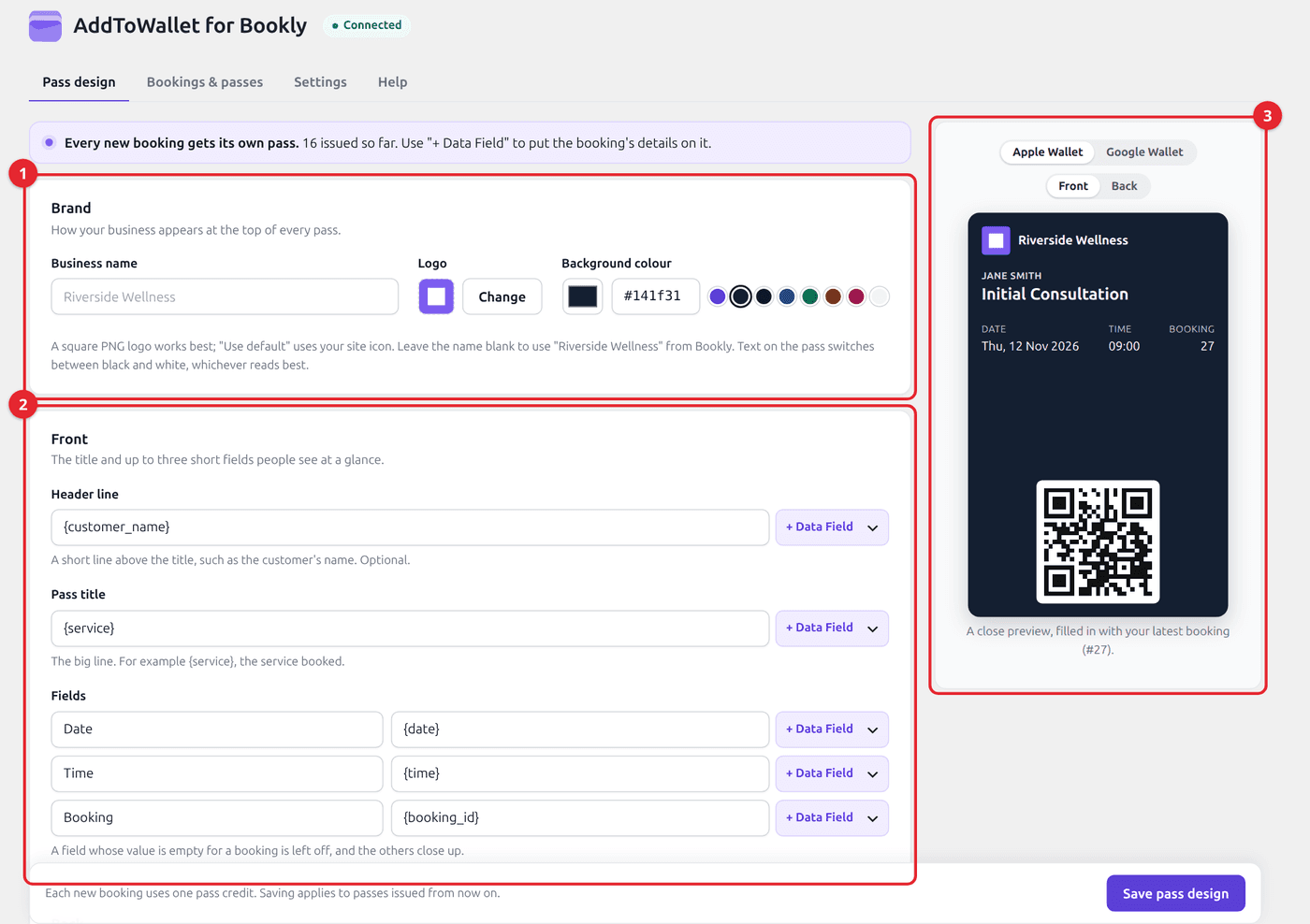
The Pass design tab in WordPress admin: brand and front-of-pass fields with + Data Field menus, beside a live Apple Wallet preview of the pass
Pass design
A visual editor with a live Apple Wallet and Google Wallet preview, front and back, filled in with your latest booking. Set your business name, logo and colour, a header line, the pass title, up to three fields on the front, and sections on the back for text, links, phone numbers, email addresses and addresses.
+ Data Field
Puts each booking's details on the pass: the customer's name, the service, staff member, date, start and end time, duration, number of people, price, booking number, online meeting link, your business contact details and more.
Bookings & passes
Every booking and whether its pass was issued, expired or failed, with the reason when one could not be created (for example, no credits left).
Settings
Your API key, checked with AddToWallet before it is saved and never sent to the browser, which booking statuses issue a pass and which expire it, and your credit balance.
Help
A contact form that goes straight to the AddToWallet team.

What you get

  • Apple and Google buttons on every booking, so nobody is stuck on the wrong device
  • Works wherever the booking form is placed: the [bookly-form] shortcode, the Bookly block or the Elementor widget
  • Rescheduled appointments, and changes to the staff member or service, update the pass already in the wallet without using another credit
  • Cancelled, rejected and deleted bookings expire the pass straight away, including cancels from the customer's own link
  • The pass shows the price Bookly charges: the staff member's own price for the service, times the number of people
  • Times on the pass follow Bookly: your site's time zone, or the customer's when Bookly shows customers their own
  • A hero image per service if you like, your choice of barcode format, and a Wallet reminder before the appointment
  • Bookings & passes shows every booking, its pass, and why a pass could not be created

Requirements

WordPress
5.8 or newer, tested up to 7.1
PHP
7.4 or newer
Bookly
Free Bookly or Bookly Pro, tested with 28.7
AddToWallet
An account and API key, with credits available

Good to know

Each pass uses one credit when it is created. Updating it after a change uses none, and expiring it does not refund the credit. If your balance runs out, bookings carry on as normal but no pass is created; Bookings & passes shows why. A Bookly Pro cart or recurring series is one order with several appointments, and gets one pass, for the first appointment. Changes made in Bookly's own screens or through the customer's cancel link reach the pass at once; anything changed some other way is picked up within ten minutes. If a service has a Final step URL, or you take payment through WooCommerce, Bookly sends the customer to another page instead of its last step, so there is nowhere to show the buttons.