
How to Add an Add to Wallet Button to Your Website
In this guide, you’ll learn how to quickly add an Add to Wallet button to your website using a simple JavaScript snippet.
This script automatically detects the user’s device using the browser’s user agent and displays:
Apple Wallet button for Safari users (iPhone/iPad)
Google Wallet button for Chrome and other browsers (Android/Desktop)
So your users will always see the correct wallet option without any extra setup.
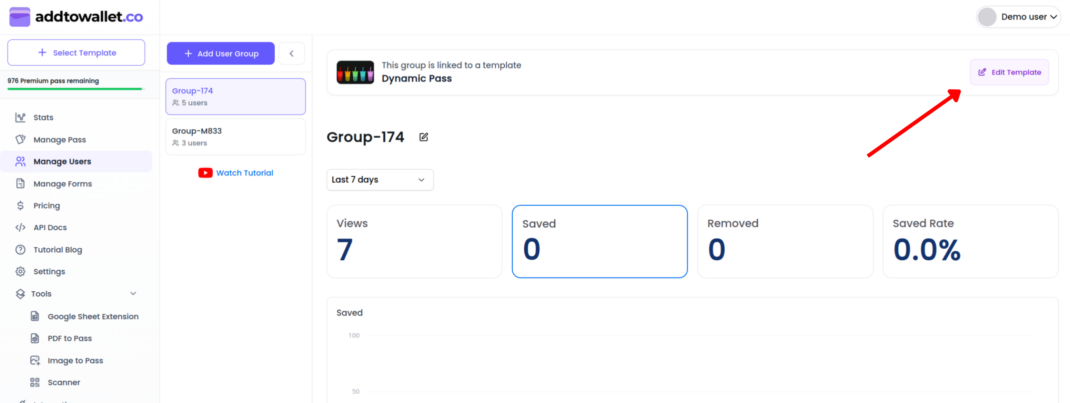
Step 1: Go to Manage Users
- Navigate to Manage Users
- Find the pass group you created
- Click on: Edit Template
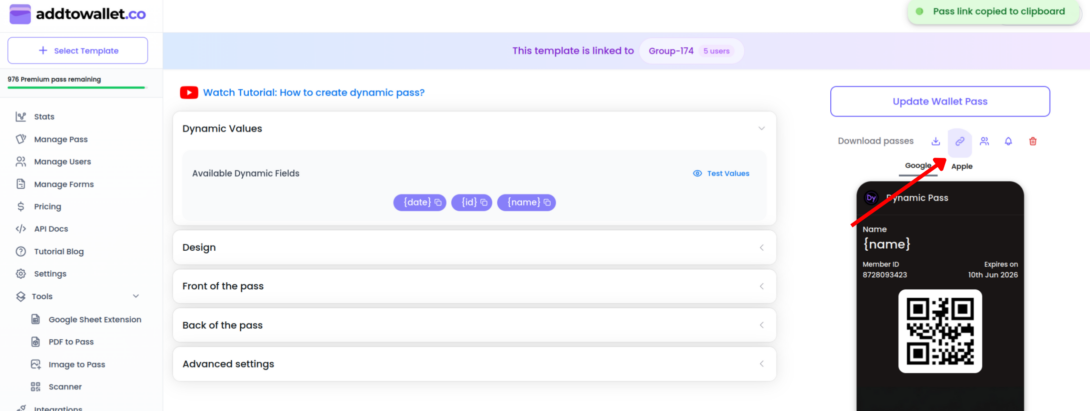
Step 2: Copy the Pass Link
- Look for Copy Pass Link
- Click on it
- Your pass generator URL will be copied
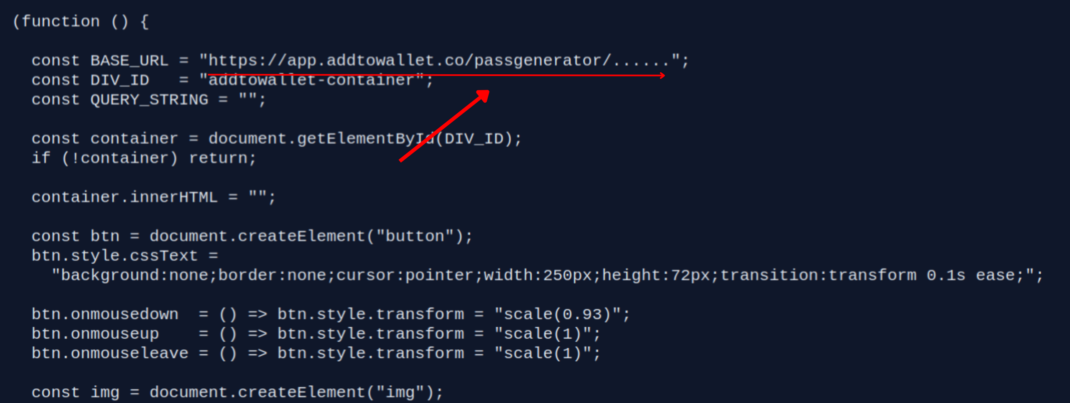
Step 3: Add the Add to Wallet Script to Your Website
- Now that you have your Pass Generator URL. It’s time to embed the script.
- Add this where you want the button to appear: <div id="addtowallet-container"></div>
- You can change
"addtowallet-container"to any ID you prefer just make sure it matches inside the script. - Replace the
BASE_URLwith the full URL you copied in step2 :
Adding Dynamic Query Parameters (Optional)
- If you want to personalize the wallet pass with dynamic values (like user name, membership ID, order number, etc.), you can update the
QUERY_STRINGvariable inside the script. - By default, it looks like this: const QUERY_STRING = "";
- If you want to pass values, update it in this format: const QUERY_STRING = "name=DemoUser&id=12345";
Get Started For Free
Join the expanding network of more than 10k+ users
No credit card needed to start trial
addtowallet.co © All Rights Reserved